
Teacher Guide
Complete guide for teachers using the Lumus LMS platform
Teacher Guide
Welcome to the Teacher documentation. As a lead teacher or teaching assistant, you manage class work from My Classes — course content, attendance, assignments, roster, onboarding links, and more.
Overview
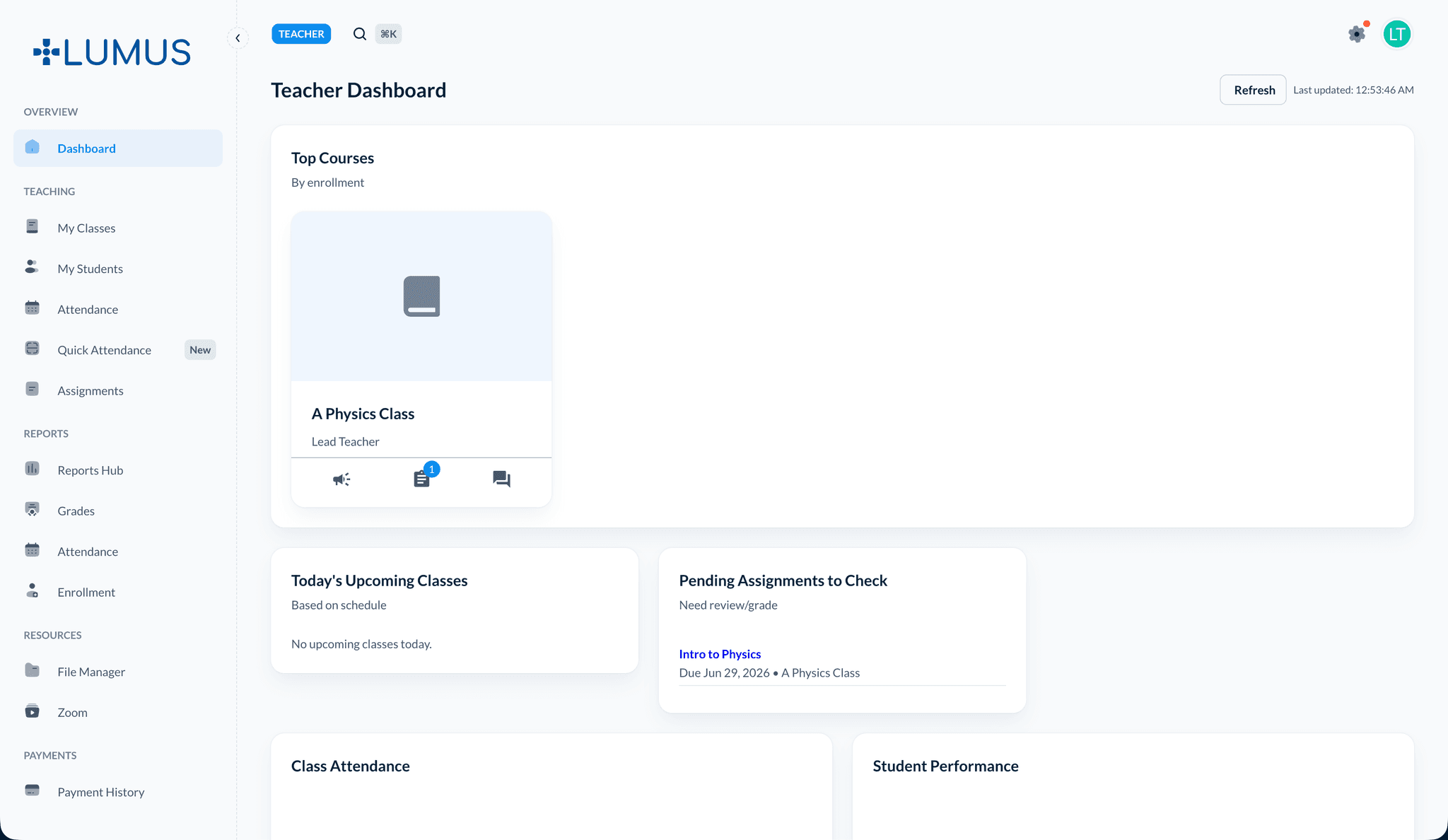
The teacher dashboard lists your assigned classes. Open any class to use its tabs — the same class-level workflow applies to lead teachers and TAs on classes they can access.
Key Features
Managing Classes
Open a class and use its tabs for content, roster, attendance, and assignments
Managing Enrollments
Enroll and unenroll students on your own classes, and understand the Teaching Assistant role
Student Onboarding Links
Generate self-registration links for in-person, offline-paid students and approve them into your class
Course Content & Modules
Create and organize course modules with sections, videos, files, and learning materials
Announcements
Post announcements to keep students informed about class updates and important information
Student Attendance
Mark Present, Absent, Late, or Excused from the class Attendance tab
Facial recognition attendance
Biometric consent, face enrollment, Quick Attendance capture, and biometric audit log
Creating Assignments
Create assignments, quizzes, exams, and projects from the class Assignments tab
Grading Assignments
Grade student submissions using speed grader, provide feedback, and manage grades
Submissions Management
Review and manage all student submissions, track completion, and handle late submissions
File Management
Upload and organize class files, resources, and materials for students
Zoom Integration
Schedule and manage Zoom meetings for classes, share meeting links, and view recordings
Student Progress
Monitor student performance, track progress over time, and view detailed analytics
Grades Management
View and manage student grades, generate grade reports, and track academic performance
Reports & Analytics
Reports Hub — grade analytics, attendance, and enrollment for your classes, with charts and exports
Dashboard Navigation
When you log in as a teacher, you'll see:
- My Classes: Quick access to all your assigned classes
- Today's Schedule: Classes scheduled for today
- Pending Grading: Assignments awaiting your review
- Recent Activity: Latest student submissions and activities
- Quick Stats: Overview of your classes, students, and assignments
- Course Content: Access to create and manage course modules and materials
- Announcements: Quick access to post class announcements
- Attendance: Daily attendance plus optional Quick Attendance, Face Enrollment, and Biometric Audit Log when enabled
- Performance and Grade Management: Cross-assignment scores and bulk grade entry
- File Manager: Shared documents and media under Resources
- Zoom: Meeting links under Resources
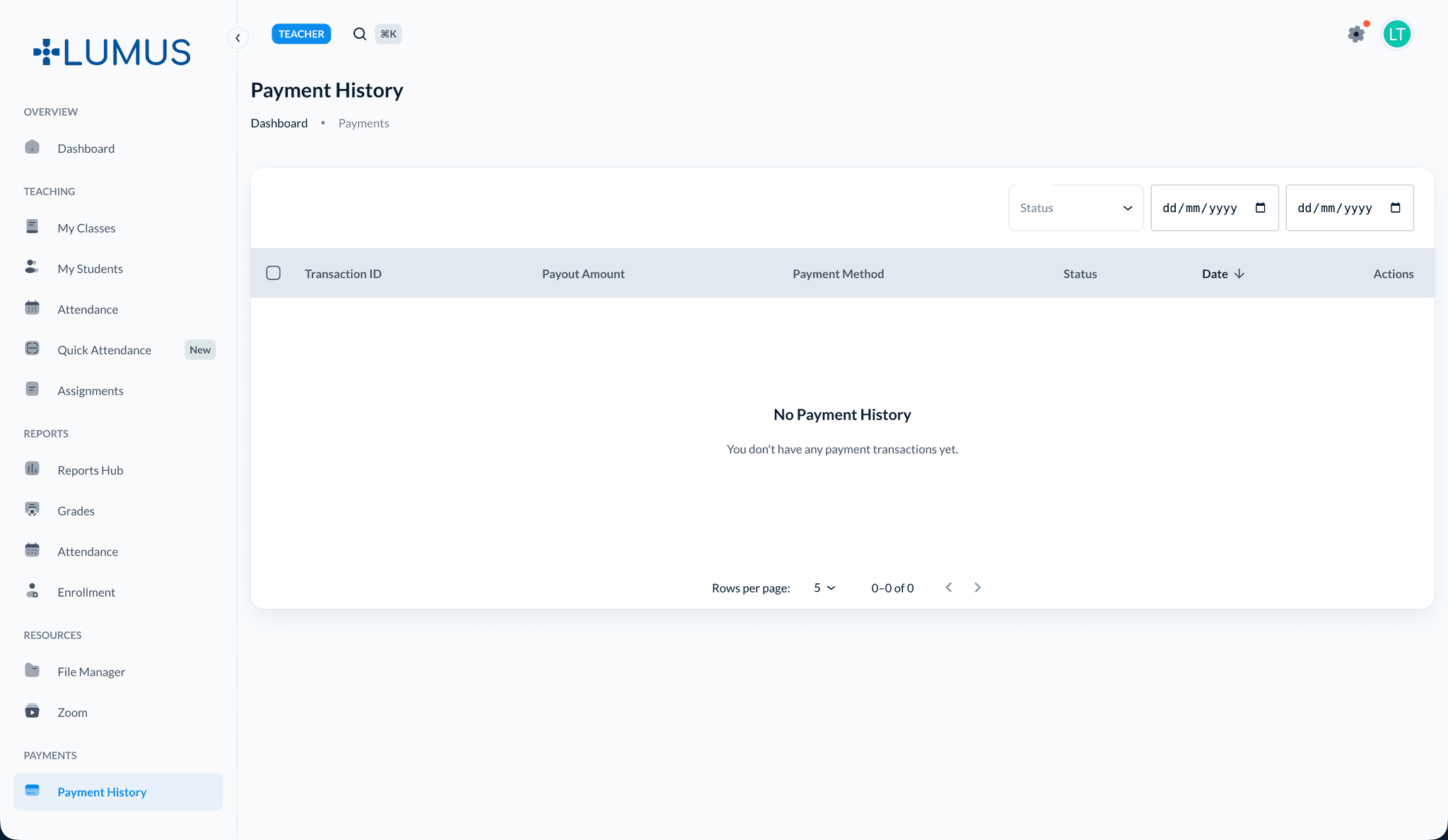
- Payment History: Teacher payout transactions under Payments
Getting Started
- Access the Dashboard: Log in with your teacher credentials
- Review Your Classes: Check your assigned classes and schedules
- View Student Rosters: Familiarize yourself with your students
- Create Your First Assignment: Start by creating an assignment for one of your classes
First Time Setup
If this is your first time logging in, make sure to change your password and review your class assignments.
Common Tasks
Marking Attendance
Navigate to Student Attendance to mark daily attendance for your classes. Attendance can be marked as Present, Absent, or Late.
Creating an Assignment
Go to Creating Assignments to set up new assignments with titles, descriptions, deadlines, and submission requirements.
Grading Submissions
Access Grading Assignments to review and grade student submissions, provide scores, and add feedback comments.
Next Steps
Explore the detailed guides for each feature: