
Managing Classes
View your assigned classes and manage class-level work
Managing Classes
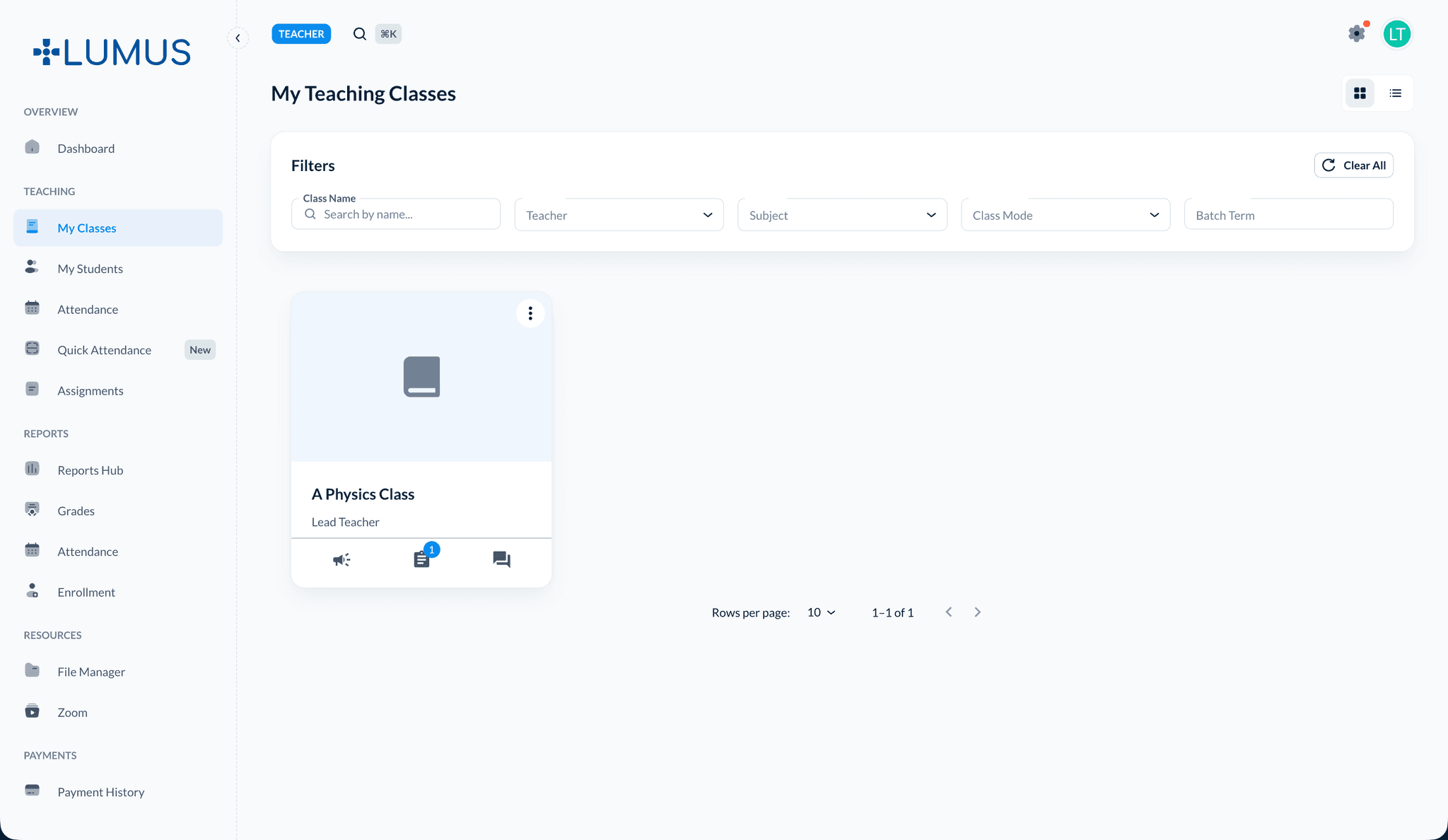
Lead teachers and teaching assistants manage day-to-day class work from My Classes. Open any class you lead or are assigned to and use the tabs on the class page for content, attendance, assignments, roster, and more.
Overview
From your assigned classes you can:
- Build course content on Home
- Post Announcements
- Mark Attendance
- Create and manage Assignments
- Review Submissions and Grades
- Manage Files, the Class Roster, and Onboarding Links
- Approve pending sign-ups on Pending
Lead teachers and TAs
Lead teachers see every class they lead. Teaching assistants see only classes they are assigned to — but the class tabs and workflows are the same on those classes.
Opening a class
- Log in to the teacher dashboard
- Open My Classes
- Click a class name to open the class detail page
A row of tabs gives you access to everything for that class:
| Tab | Purpose |
|---|---|
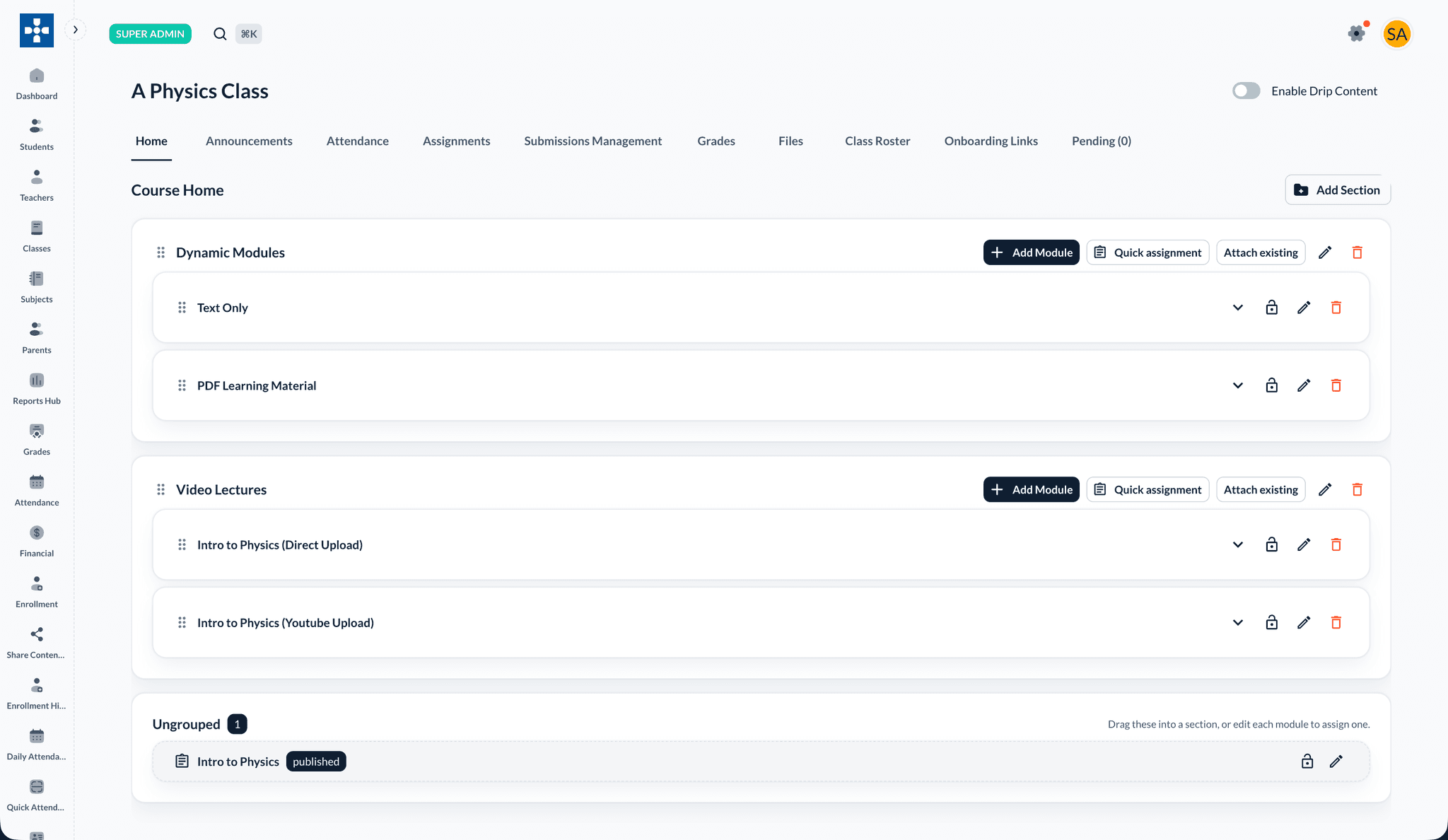
| Home | Course content — sections and learning modules |
| Announcements | Post class announcements |
| Attendance | Mark daily attendance for the roster |
| Assignments | Create and manage assignments |
| Submissions Management | Review student submissions |
| Grades | Grade book |
| Files | Class file manager |
| Class Roster | Enrolled students and access status |
| Onboarding Links | Self-registration links for offline-paid students |
| Pending | Pending onboarding approvals |
Use the Enable Drip Content toggle at the top right to control scheduled module release for the whole class.
Class Roster
Open the Class Roster tab to see every enrolled student with enrollment status, access status, and payment status.
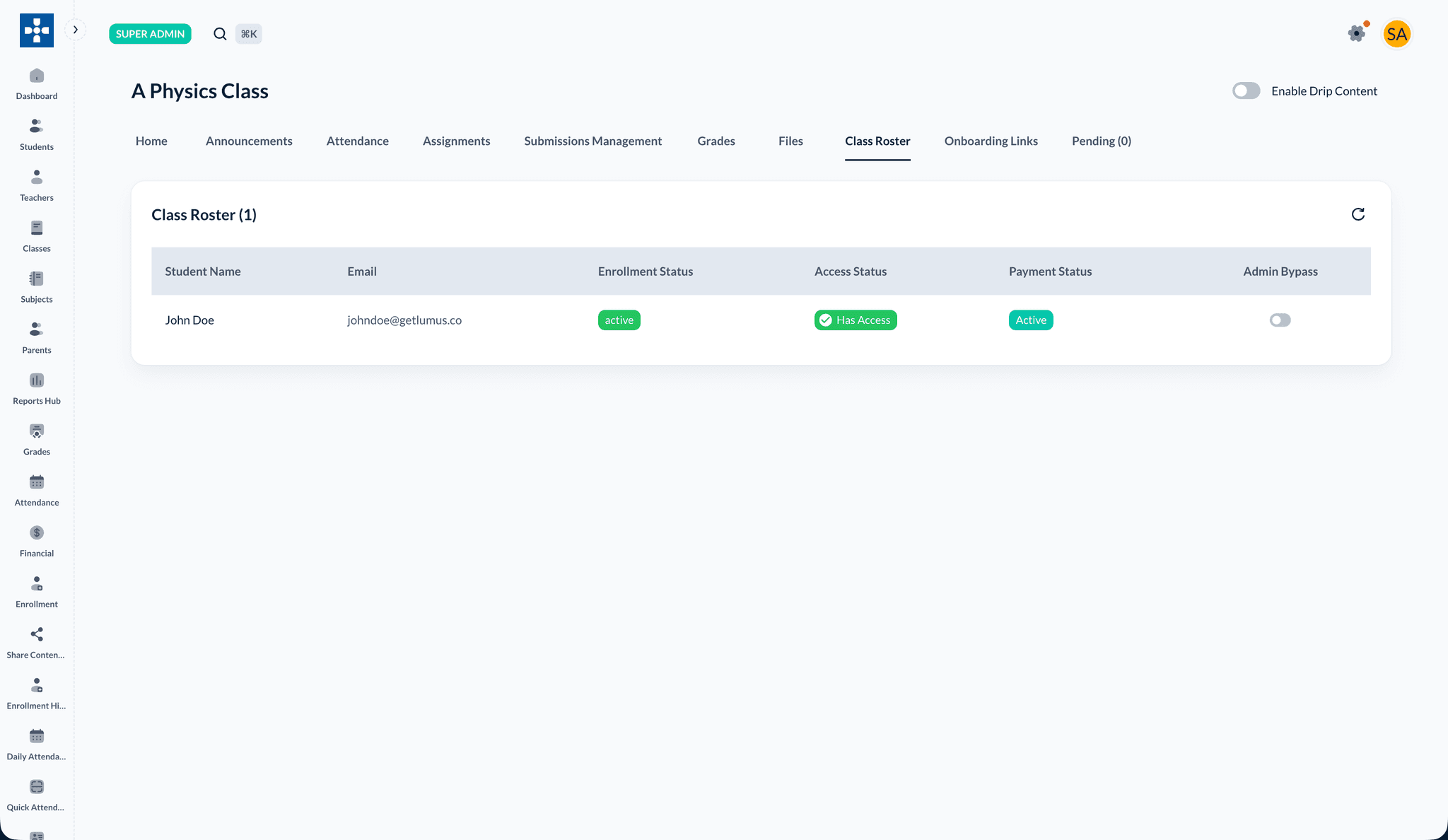
To enroll or unenroll students directly, see Managing Enrollments. For batch self-registration, use Student Onboarding Links.
Class activities at a glance
Each tab has its own guide with step-by-step instructions:
- Course Content & Modules — sections, modules, videos, drip content
- Announcements — post and pin updates
- Student Attendance — mark Present, Absent, Late, or Excused
- Creating Assignments — assignments, quizzes, exams, projects
- Grading Assignments — grade submissions
- Submissions Management — review submitted work
- File Management — upload and organize class files
- Student Onboarding Links — onboarding links and approvals
Best Practices
Troubleshooting
Issue: A class is not listed under My Classes
- Solution: Contact your administrator to confirm you are the lead teacher or an assigned TA for that class.
Issue: A tab is missing
- Solution: Feature modules may hide certain tabs for your role. Ask your administrator if you expect access.
Related Topics
- Managing Enrollments — Enroll and unenroll students
- Student Onboarding Links — Self-registration with approval
- Course Content & Modules — Build the class curriculum