
Managing Enrollments
Enroll and unenroll students on your own classes, and understand the Teaching Assistant role
Managing Enrollments
Lead teachers and teaching assistants can manage the roster on their own classes — enrolling and unenrolling students directly, without waiting for an administrator.
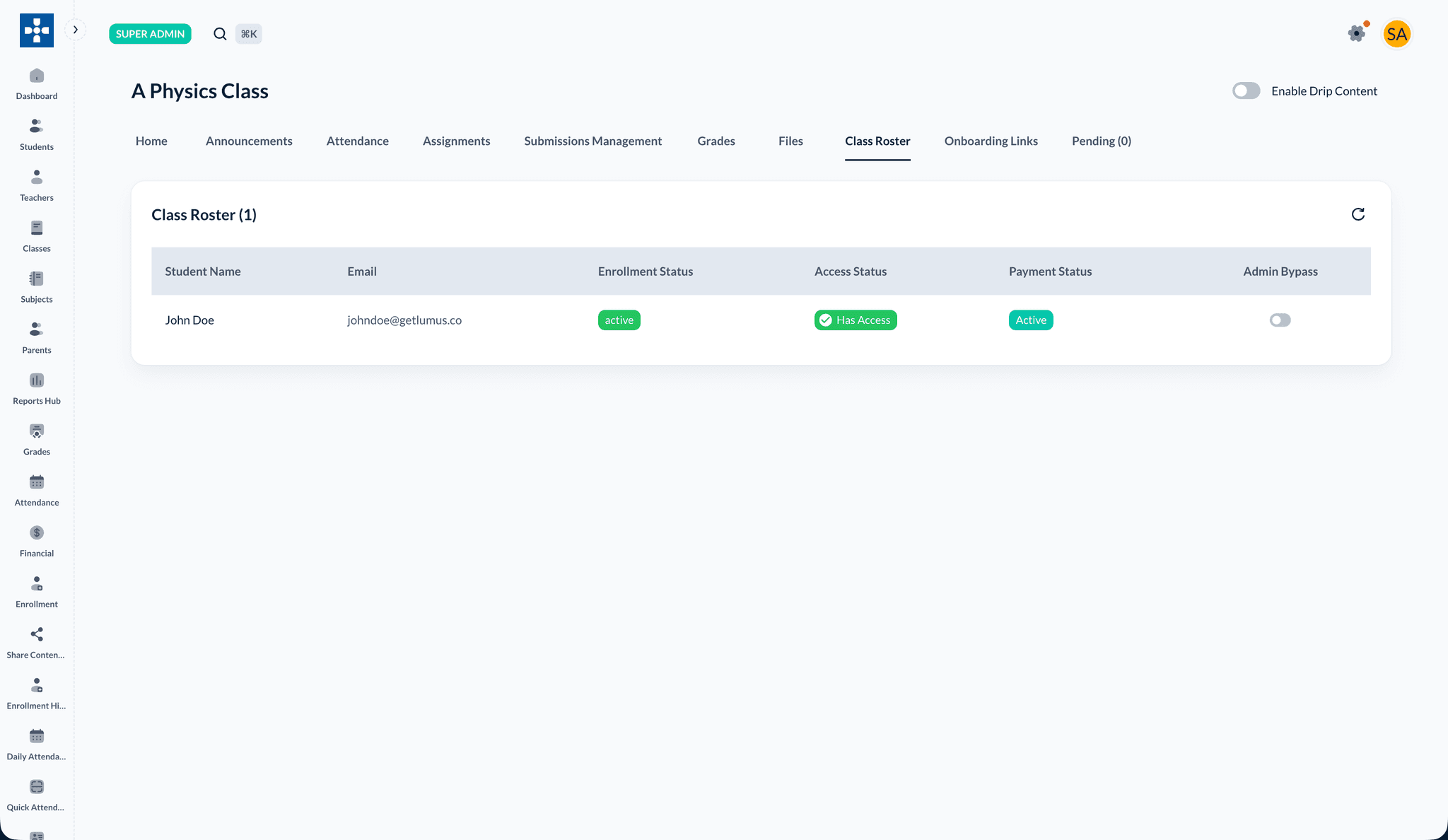
View the roster
Open the class and go to Class Roster to see every enrolled student with enrollment status, access status, and payment status.
Enrolling a student
- Open the class and go to Class Roster
- Open Manage Enrollments (where available)
- Add one or more students to the class
- Save
The student appears on the roster and gains access immediately.
Unenrolling a student
- Open Manage Enrollments on the class
- Remove the student from the class
- Save
The student loses access to class content.
Scoped to your classes
You can only manage rosters for classes you lead or, as a TA, classes you are assigned to.
Two ways students join
| Method | Who adds them | When to use |
|---|---|---|
| Manage Enrollments | You add the student directly | You already have the student's account |
| Onboarding links | Students self-register, you approve | Batches of in-person, offline-paid students |
Teaching assistants
A Teaching Assistant (TA) can do everything a lead teacher can on assigned classes — content, assignments, announcements, attendance, grading, files, roster management, and the onboarding approval queue.
What a TA cannot do:
- Access classes they are not assigned to
- Create or delete classes, or assign other TAs
- Edit fee structures or manage invoices
- Toggle admin-granted access
TAs are created by an administrator. Once assigned to a class, the class tabs work the same as for a lead teacher.
Troubleshooting
Issue: I don't see Manage Enrollments
- Solution: Confirm you are the lead teacher or an assigned TA. Ask your administrator to verify your assignment.
Issue: A self-registered student isn't on the roster
- Solution: Check the Pending tab and approve them via Onboarding links.
Related Topics
- Student Onboarding Links — Batch self-registration
- Managing Classes — Class tabs overview