
Student Attendance
Mark daily attendance for your class roster
Student Attendance
Mark attendance from the class Attendance tab. Lead teachers and teaching assistants use the same flow on classes they can access.
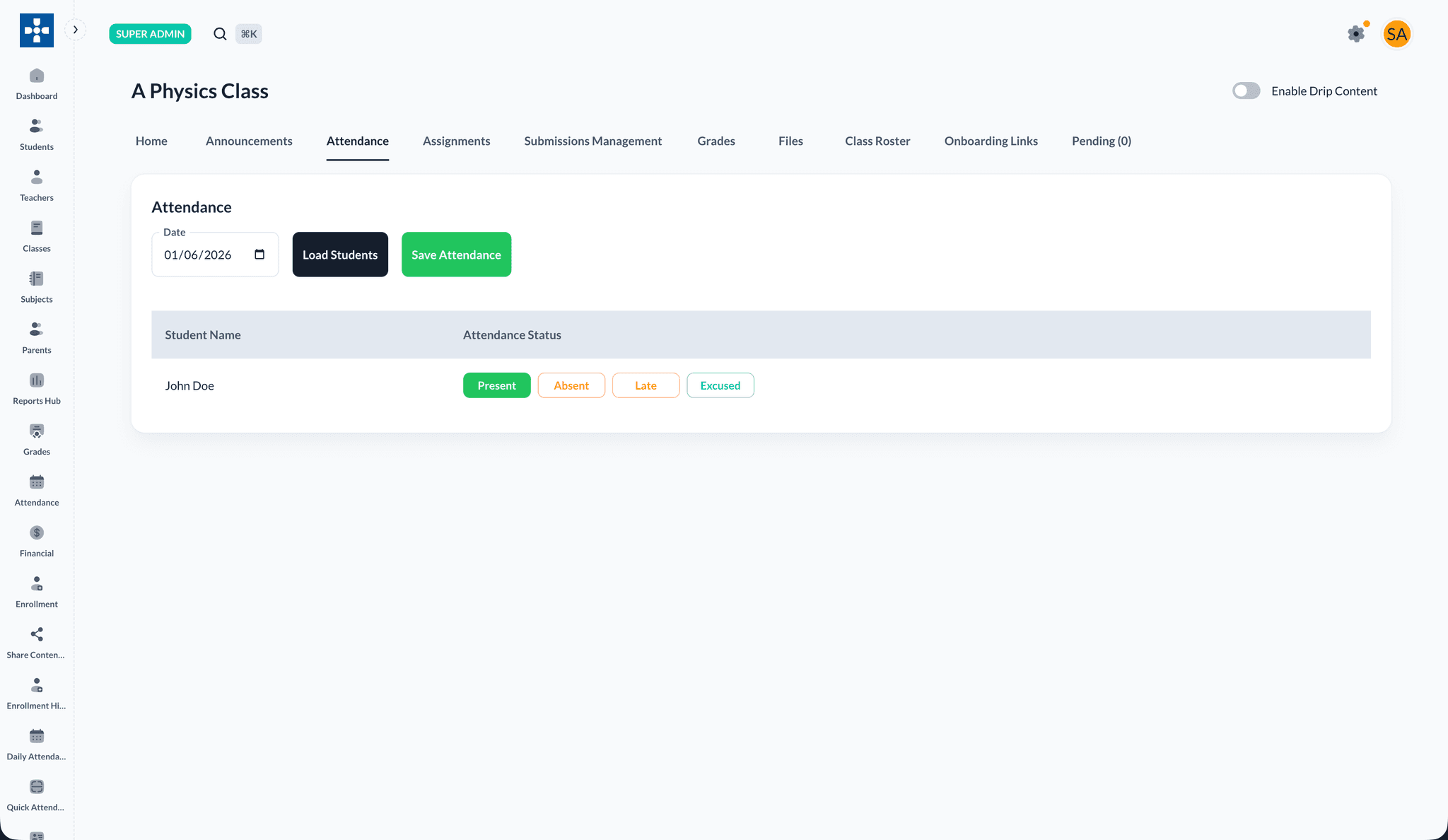
Marking attendance
- Open the class from My Classes
- Go to the Attendance tab
- Pick the Date
- Click Load Students to pull the roster for that date
- Set each student to Present, Absent, Late, or Excused
- Click Save Attendance
Save before leaving
Attendance is not saved until you click Save Attendance. Contact your administrator if you need a correction after saving.
Quick Attendance and face enrollment
Your institution may also enable sidebar tools under Attendance:
- Daily Attendance — Cross-class attendance grid
- Quick Attendance — Face-recognition Quick Capture
- Face Enrollment — Register face templates per student
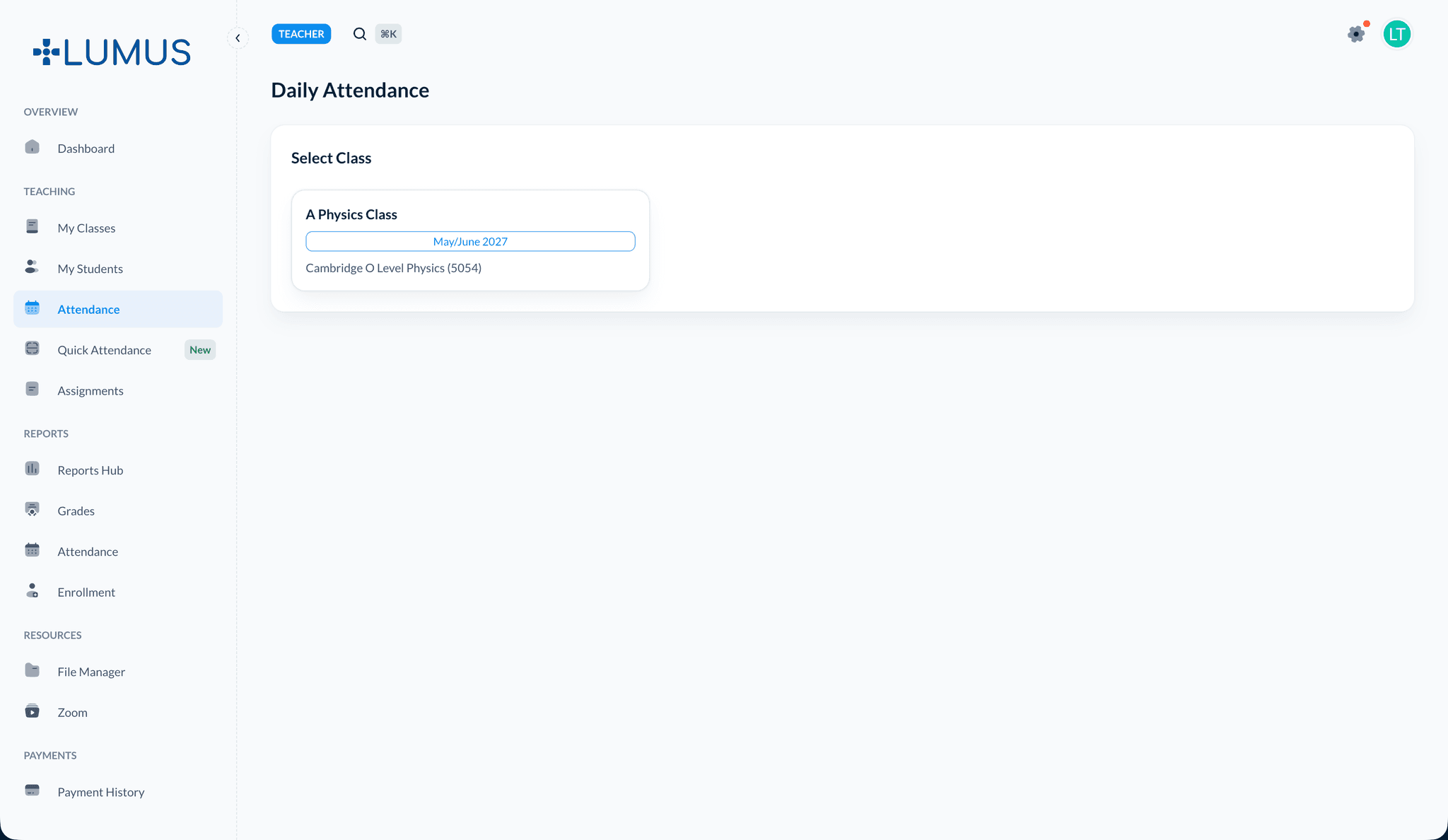
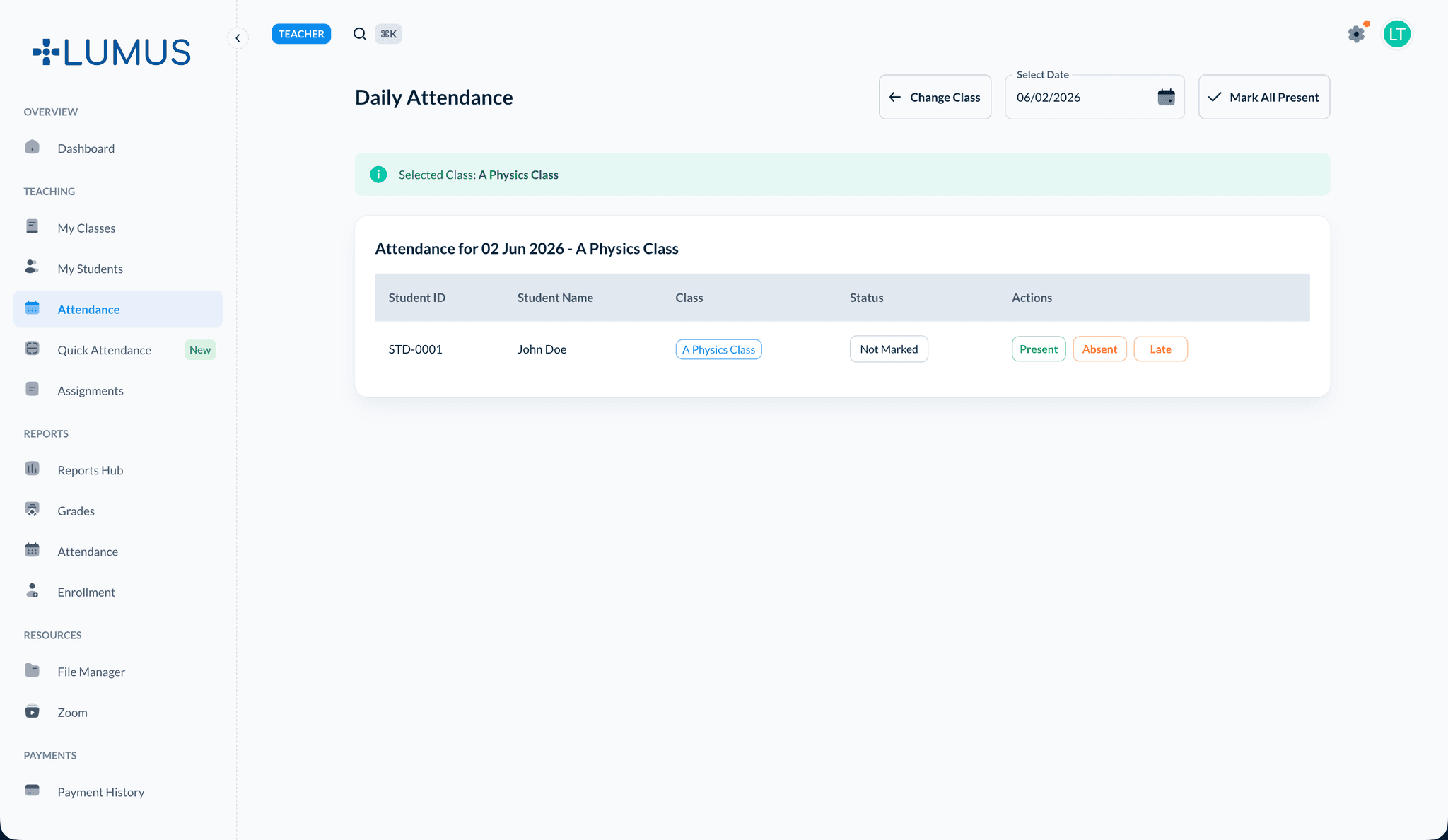
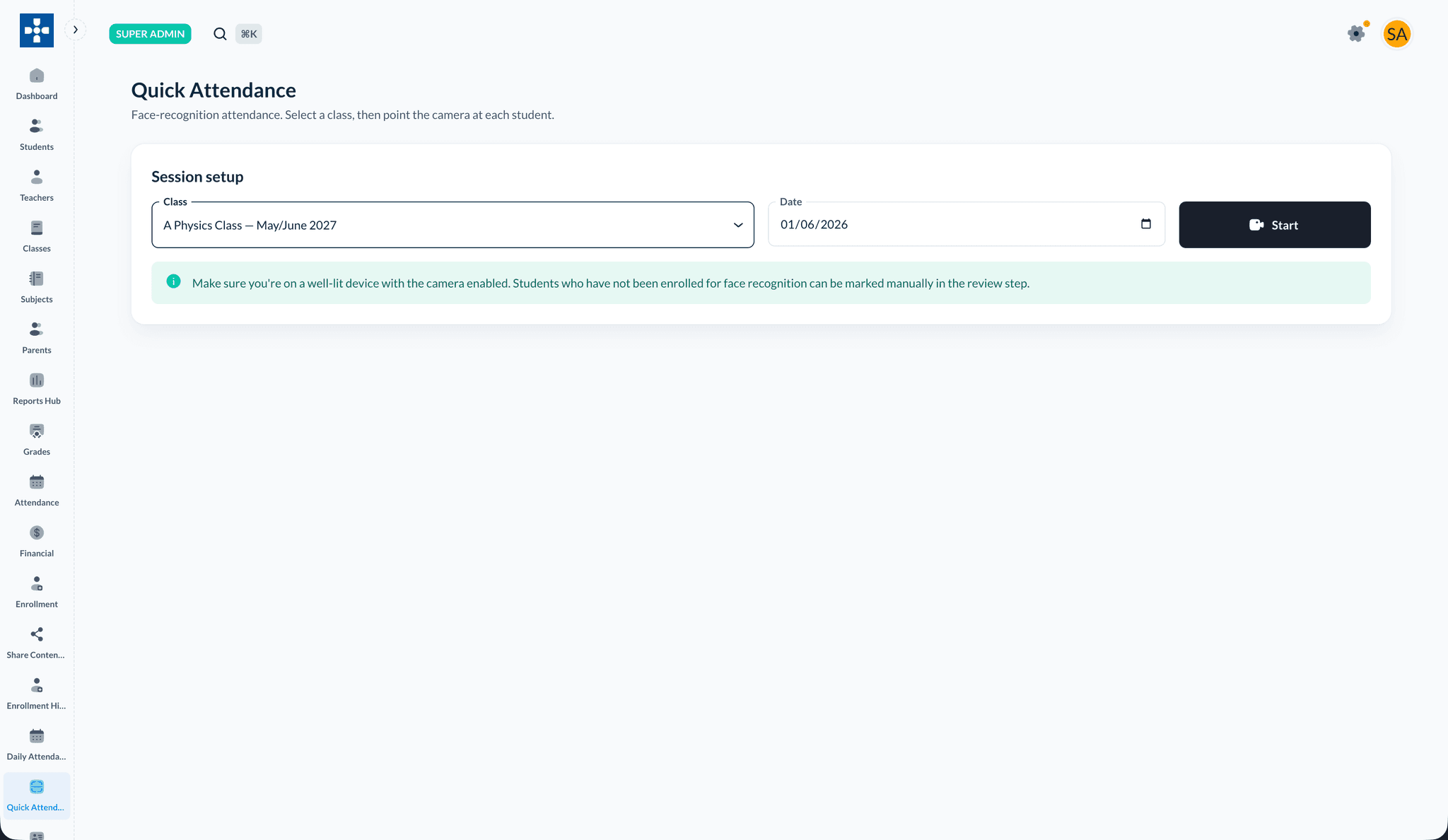
For consent, camera enrollment, and the full Quick Capture flow, see Facial recognition attendance.
If you do not see these items, they may be disabled for your role or tenant.
Best Practices
Troubleshooting
Issue: No students appear after Load Students
- Solution: Confirm the date and that students are actively enrolled (not still pending onboarding approval).
Issue: Cannot access Attendance for a class
- Solution: Verify you are the lead teacher or an assigned TA for that class.
Related Topics
- Managing Classes — Open the class and its tabs
- Reports — Attendance reports
- Facial recognition attendance — Biometric options