
Reports & Analytics
Use the Reports Hub to view grade analytics, attendance, and enrollment for your classes
Reports & Analytics
The Reports Hub gives you analytics for the classes you teach — grade performance, attendance, and enrollment — with charts, data tables, and exports. Everything is automatically scoped to your classes, so you only ever see your own students' data.
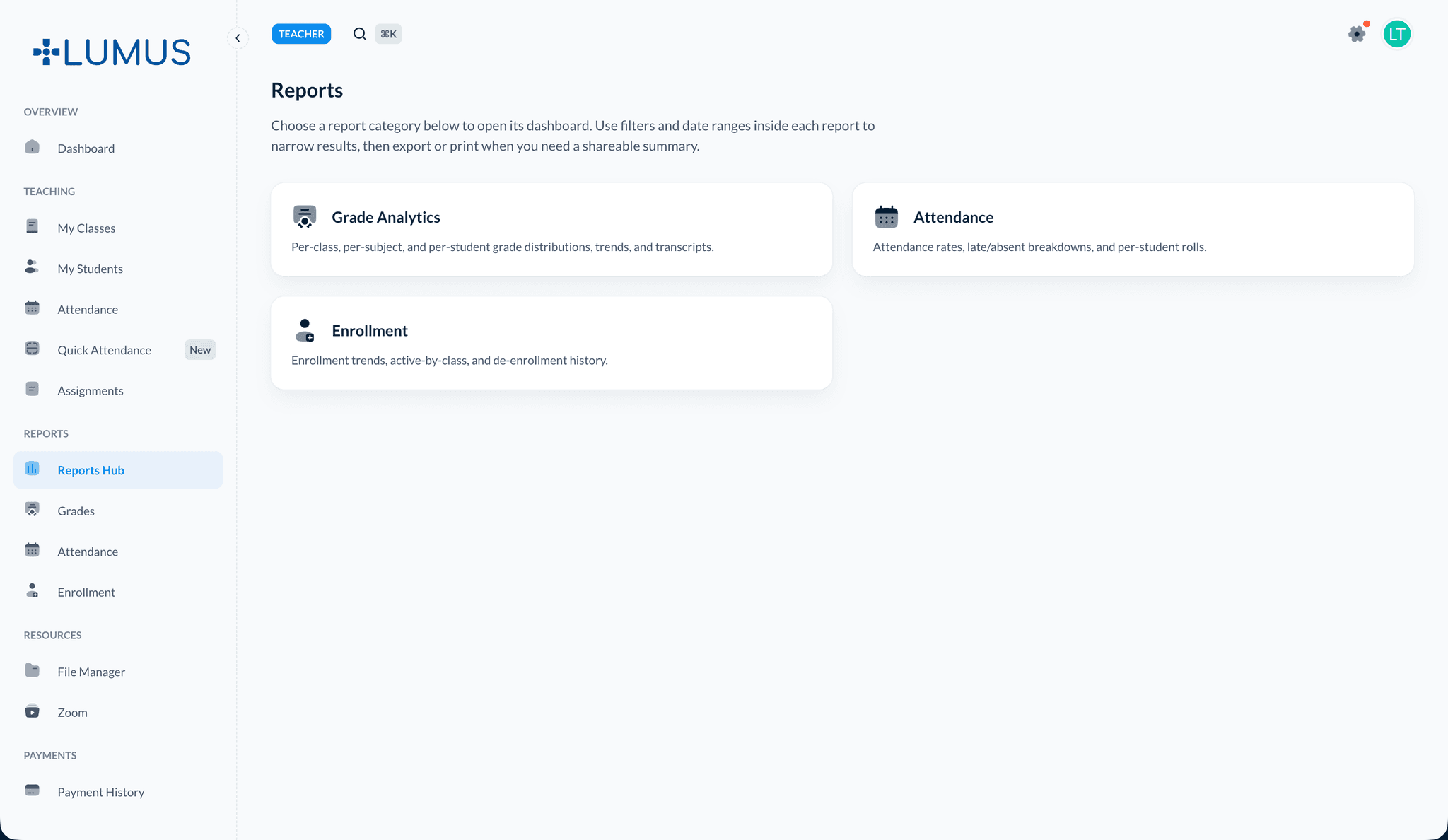
Opening the Reports Hub
- Open Reports from the sidebar.
- The hub shows a card for each report available to you. Click one to open its dashboard.
As a teacher you'll see:
Grade Analytics
Grade distributions, trends, and transcripts for your classes
Attendance
Attendance rates, late/absent breakdowns, and per-student rolls
Enrollment
Enrollment trends, active-by-class counts, and de-enrollment history
Financial reports are admin-only
The Financial report (teacher payouts, collection rates, outstanding balances) is reserved for administrators and won't appear in your hub.
Shared controls
Every report shares the same controls at the top.
Filters bar
- Date range — limit the report to a start/end window.
- Class — focus on one or more of your classes. You'll only see classes you teach (or, if you're a Teaching Assistant, classes you're assigned to).
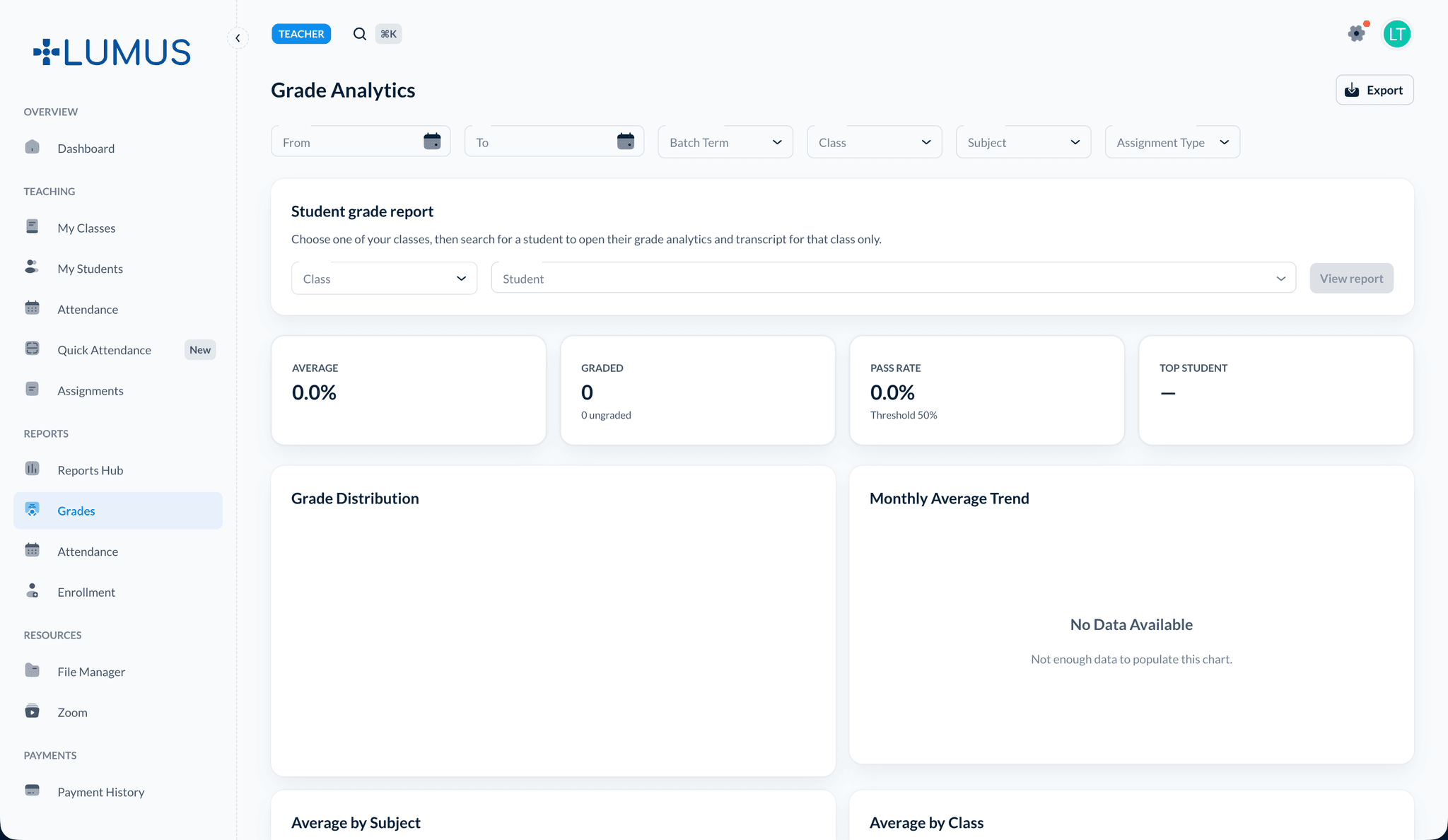
Export menu
Use Export to download the current view:
- PDF — a branded, print-ready summary using your academy's logo and details.
- Excel (.xlsx) — full row-level data.
- CSV — raw rows for other tools.
Exports respect the filters and date range you've set, so the download matches what's on screen.
Grade Analytics
Summarises academic performance for the selected classes and date range.
- Summary cards — average grade, graded vs ungraded count, pass rate (against your academy's pass threshold), and the top student.
- Charts — grade distribution, trend over time, and breakdowns by subject, class, and assessment type.
- Student lookup & transcript — drill into one student's grades and generate a branded student transcript PDF.
- Grades table — per-student rows, paginated and exportable.
Attendance
Shows attendance health for the selected classes and dates.
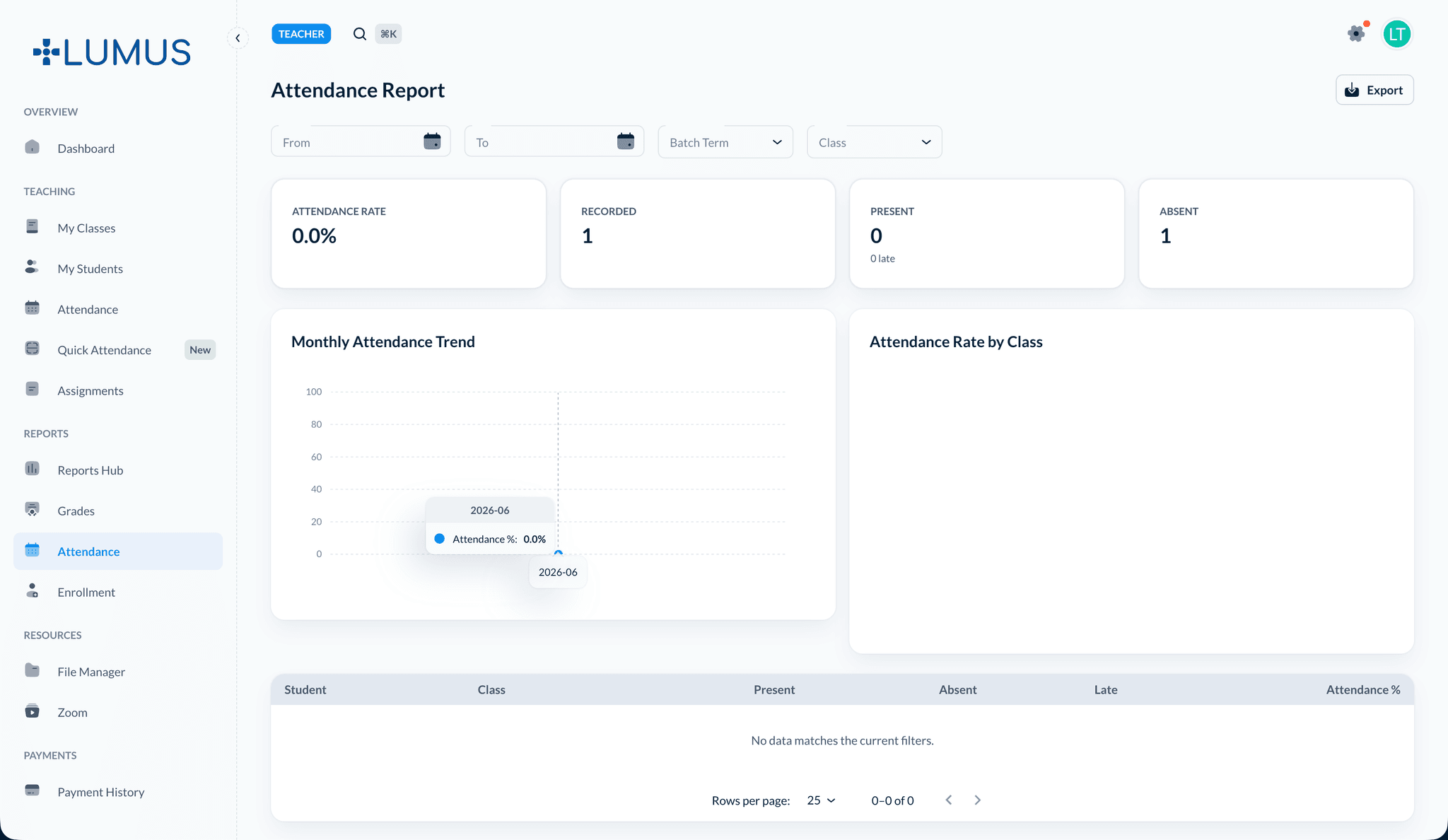
- Summary cards — overall attendance rate and present / late / absent breakdowns.
- Trend chart — attendance over time.
- By-class chart — compare your classes.
- Attendance rows table — per-student attendance, paginated and exportable.
Enrollment
Tracks how your class rosters change over time.
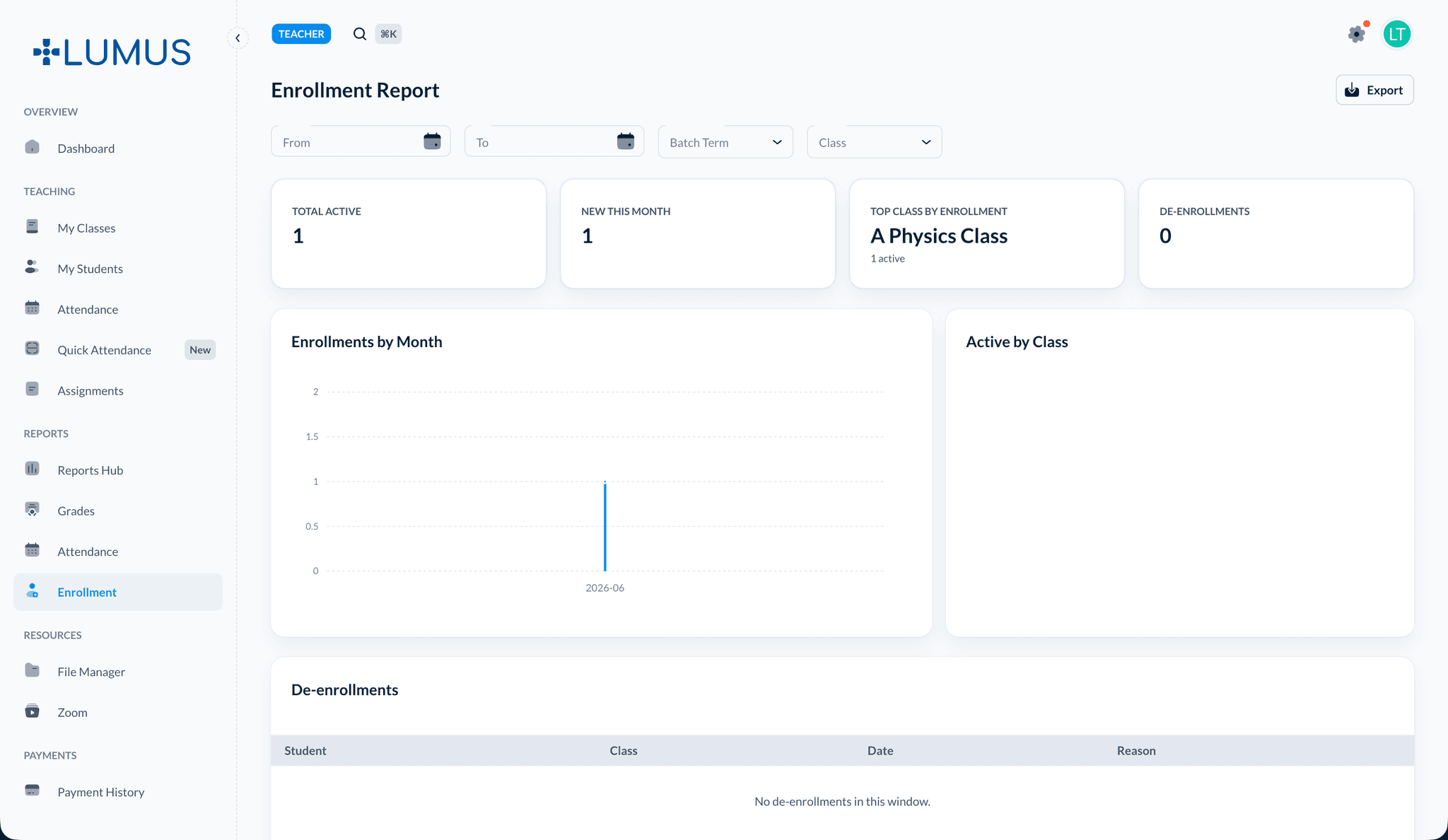
- Summary cards — active enrollment totals.
- Active by class — current active enrollment per class.
- De-enrollment history — students who left, exportable.
Best Practices
Troubleshooting
Issue: A report shows no data
- Solution: Widen the date range or clear the class filter. You only see classes you teach or are assigned to as a TA.
Issue: I can't see the Financial report
- Solution: That report is admin-only by design.
Related Topics
- Grades Management - View and manage grades
- Student Attendance - How attendance is captured
- Student Progress - Per-student performance