
Student Onboarding Links
Generate self-registration links for your in-person, offline-paid students and approve them into your class
Student Onboarding Links
If you teach students in person who pay offline (cash or bank transfer outside the platform), onboarding links let them join your class without keying in each student by hand. Generate one link per class or cohort, share it, and approve sign-ups from the Pending tab.
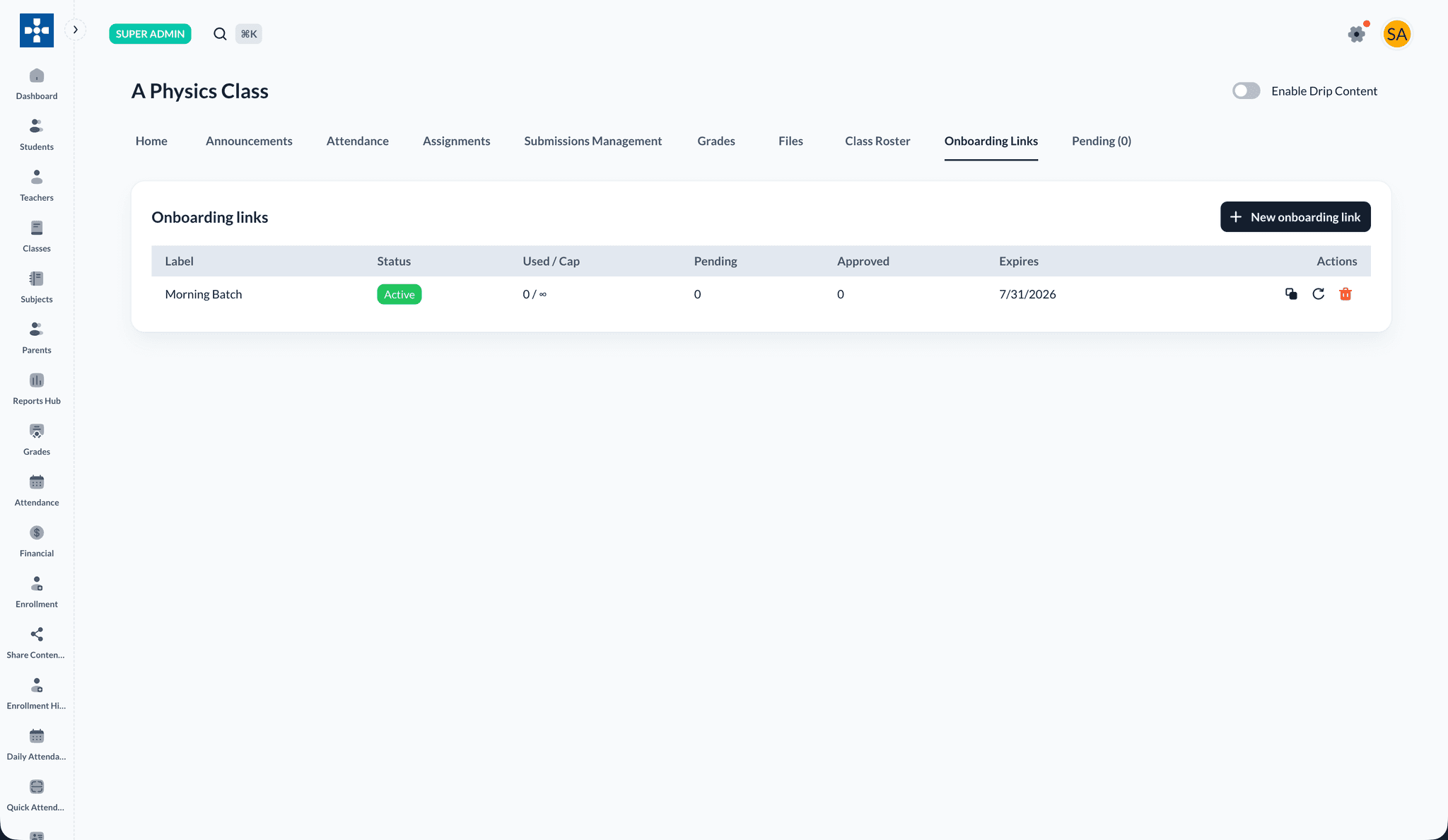
Lead teachers and TAs
You do not need an admin. The Onboarding Links and Pending tabs are on your class page for any class you lead or are assigned to as a TA.
How it works
- You create an onboarding link for a class.
- You share the link with your students.
- A student opens it and self-registers (name, email, phone, password; optional date of birth and parent details).
- The request appears in Pending. The student can log in, but the class shows "Pending teacher approval" until you review it.
- You approve (student gets full access; a paid invoice is recorded for the offline payment) or reject (the request is removed, with an optional reason).
Approval is the security gate — even if the link is shared further than intended, nobody gets access until you approve them.
Creating a link
- Open your class and go to Onboarding Links
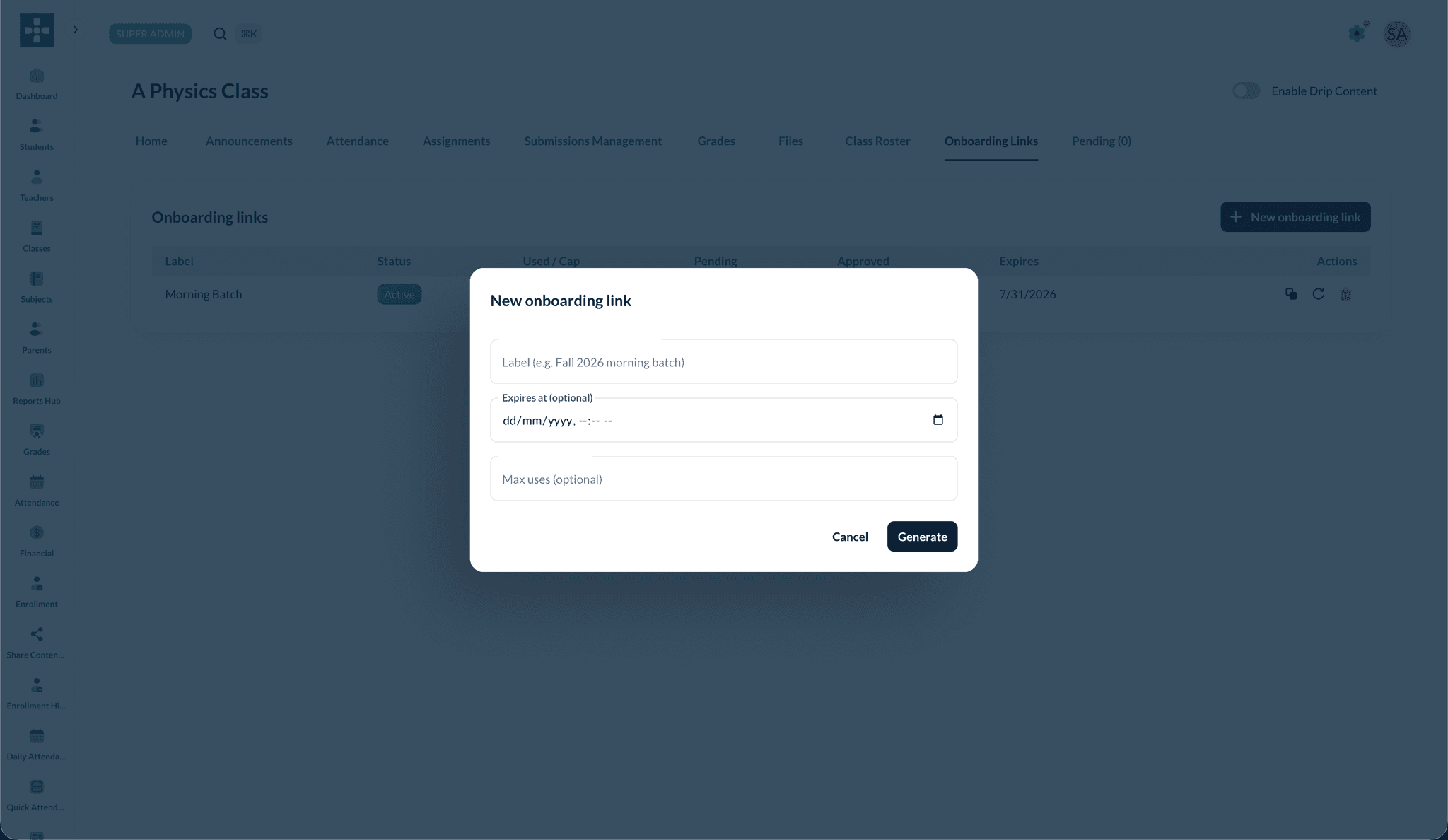
- Click + New onboarding link
- Optionally set:
- Label — e.g. "Fall 2026 — Morning Batch"
- Expires at — date and time after which the link stops working
- Max uses — cap on how many students can sign up
- Click Generate, then copy the join URL and share it with your students
You can have several active links on one class. The tab lists each link with label, status, used/cap, pending and approved counts, expiry, and actions to Copy Link, Regenerate, or Delete.
Usage counts at sign-up
The used count increases when a student signs up, not when you approve them. Rejecting a request does not free up a slot.
Approving and rejecting
- Open your class and go to the Pending tab
- Review each request — name, email, phone, when they submitted, and which link they used
- Approve — the student gets full access, and a paid invoice is recorded at the current class fee (marked paid as cash by default). The student receives a confirmation email.
- Reject — the request is removed; add an optional reason, which is emailed to the student. Their account is not deleted.
Switch the queue to Approved or Rejected to see past decisions.
Good to know
- Already has an account? If a student signs up with an email that already exists, they are prompted to log in and claim their spot.
- Duplicate sign-ups are de-duplicated automatically.
- Pending students are not on the active roster and cannot see class content until approved.
- Co-teachers and TAs — anyone with access to the class can work the same queue.
Related Topics
- Managing Enrollments — Enroll students directly
- Managing Classes — Class tabs and roster