
Course Content & Modules
Create and organize course modules with sections, videos, and materials
Course Content & Modules
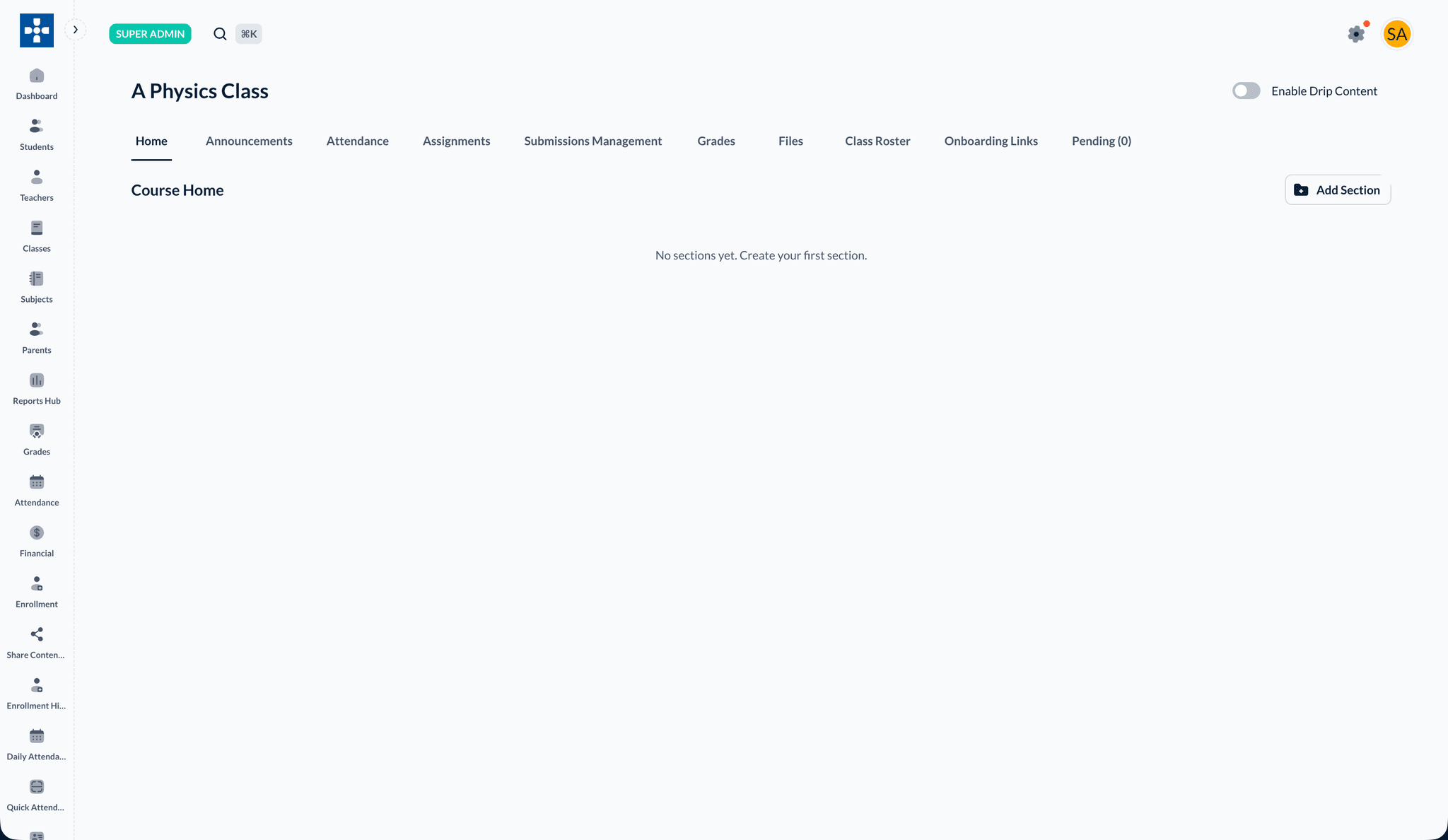
Build your class curriculum on the Home tab. Create sections, add learning modules with videos and attachments, and control drip content and visibility for enrolled students.
Overview
Course Content & Modules enables you to:
- Create sections to organize modules
- Add learning modules with video URLs, uploads, or class files
- Attach PDFs, documents, and images
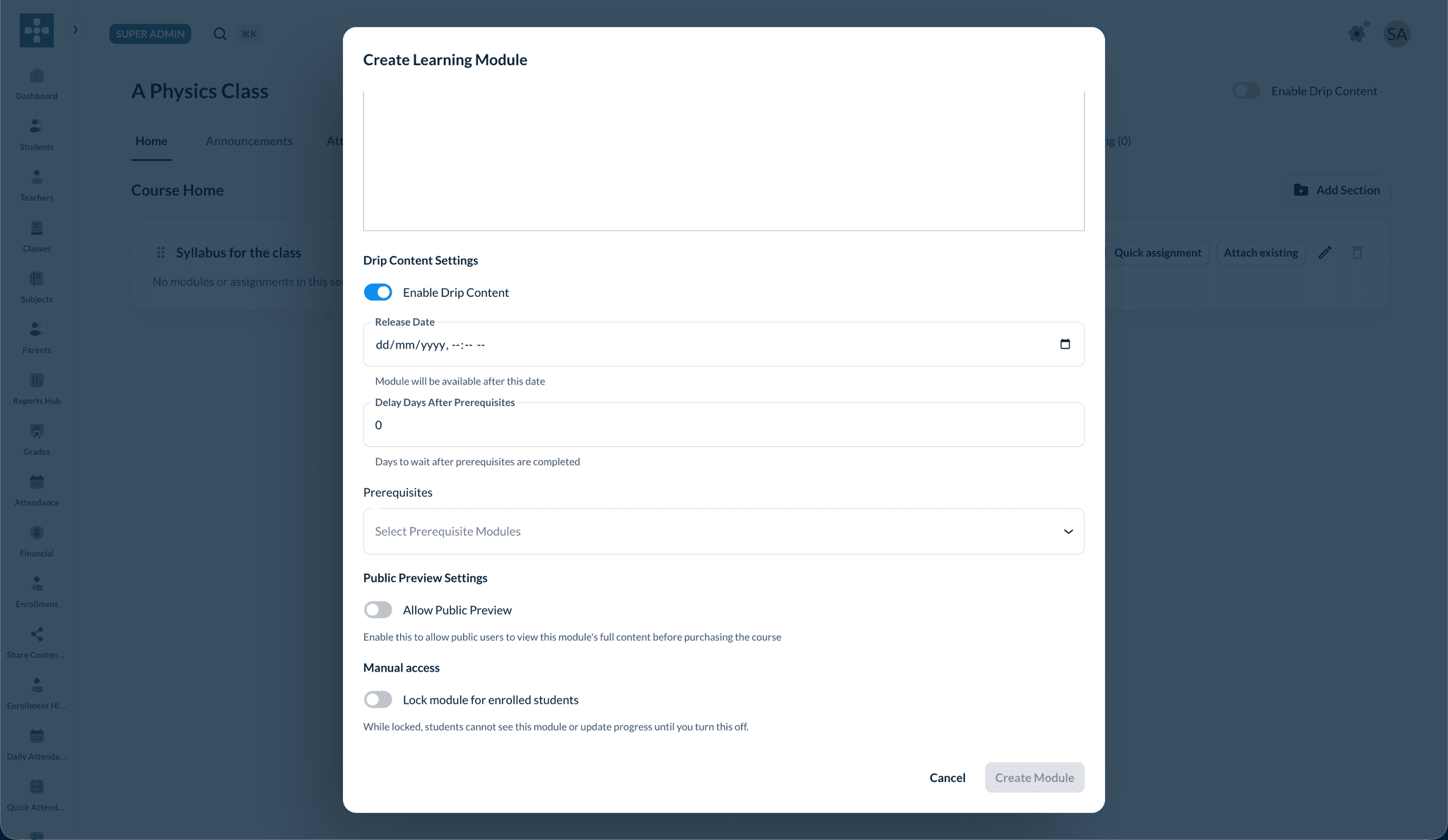
- Control drip content, prerequisites, and manual locks
- Reorder content with drag and drop
Accessing Course Home
- Open a class from My Classes
- Go to the Home tab
- Use Add Section or + Add Module to start building content
Creating sections
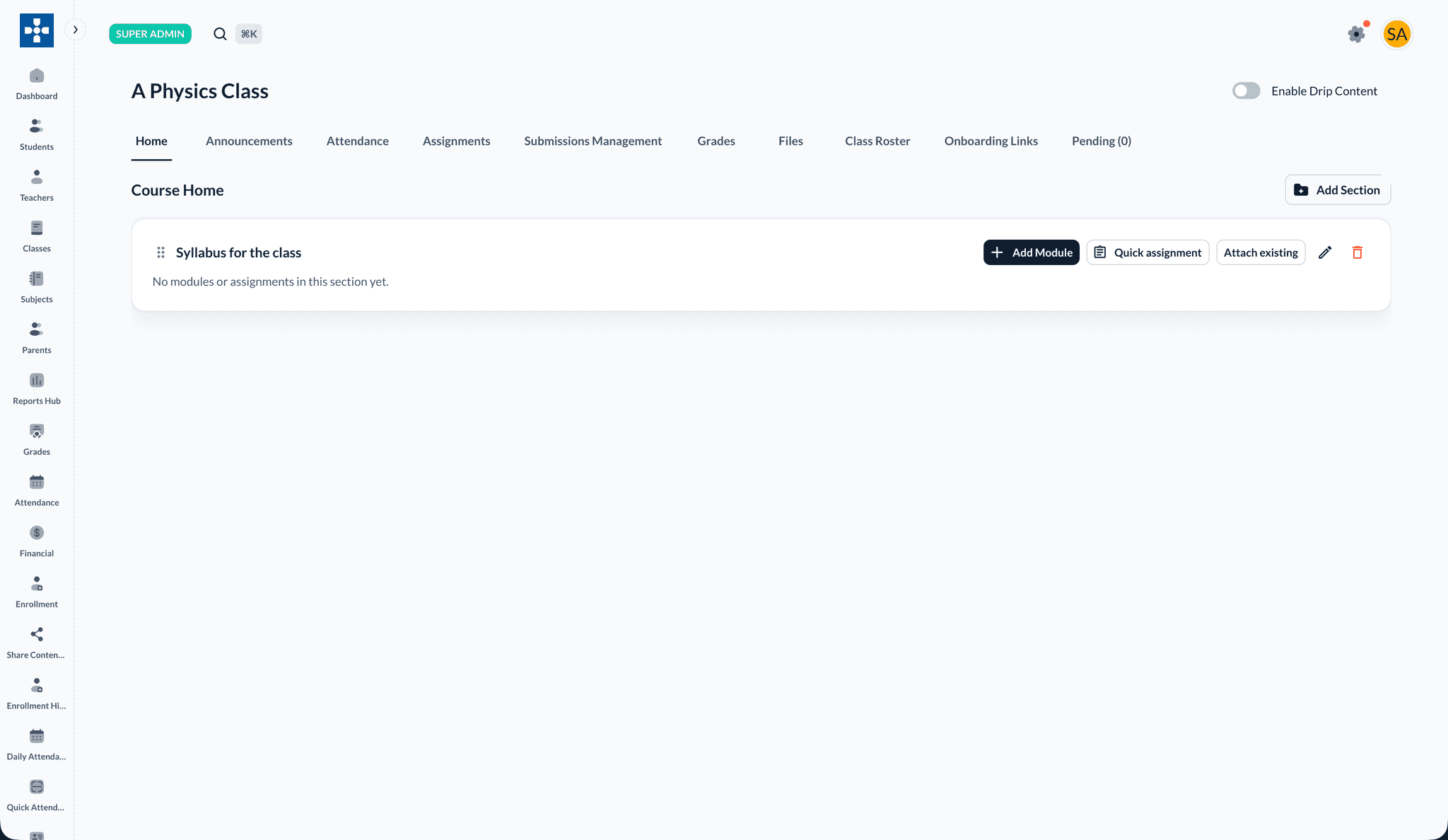
- On Home, click Add Section
- Enter a section title (for example, Video Lectures or Week 1 — Introduction)
- Click Save
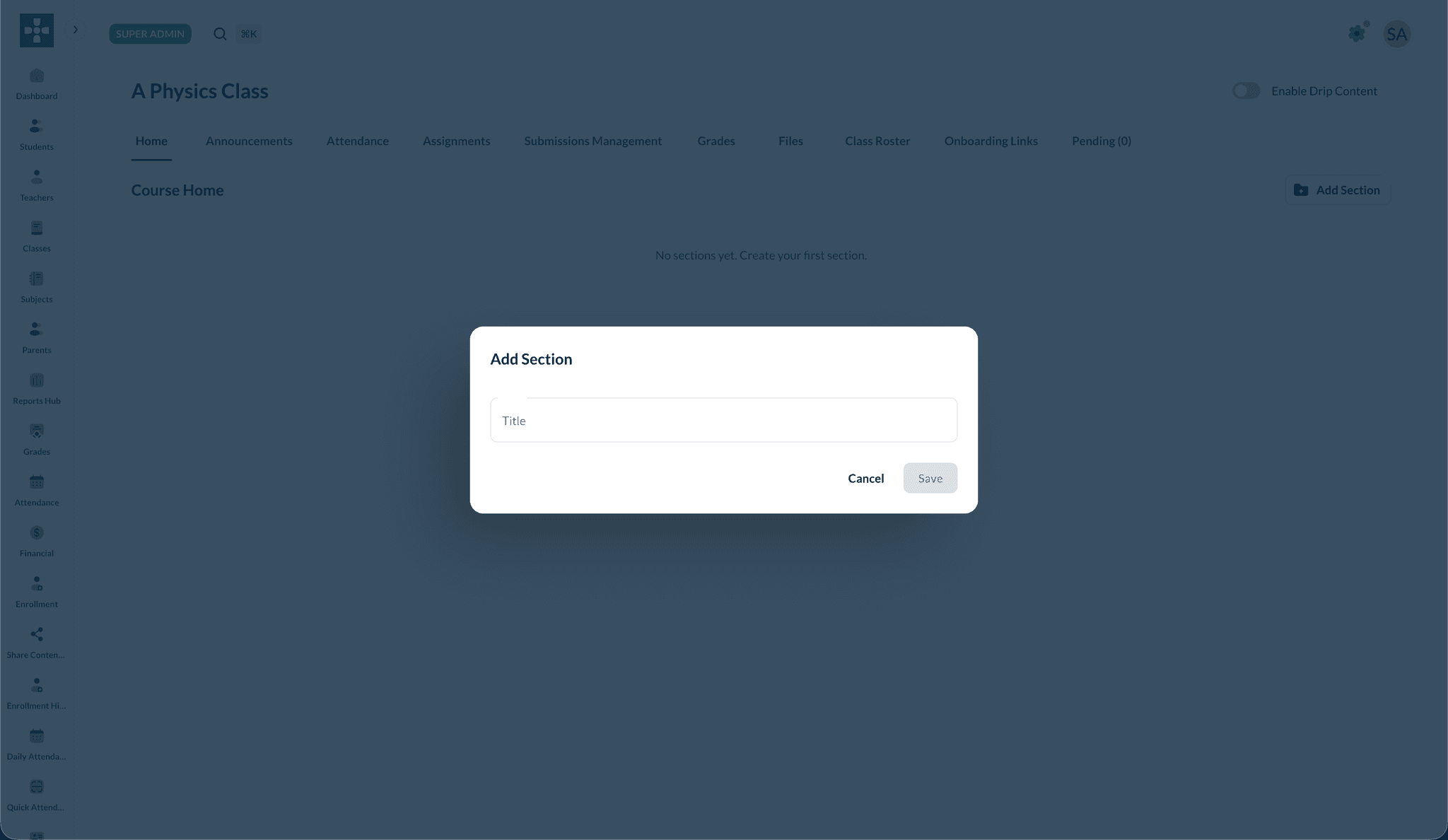
After saving, use + Add Module, Quick assignment, or Attach existing from the section header.
Creating modules
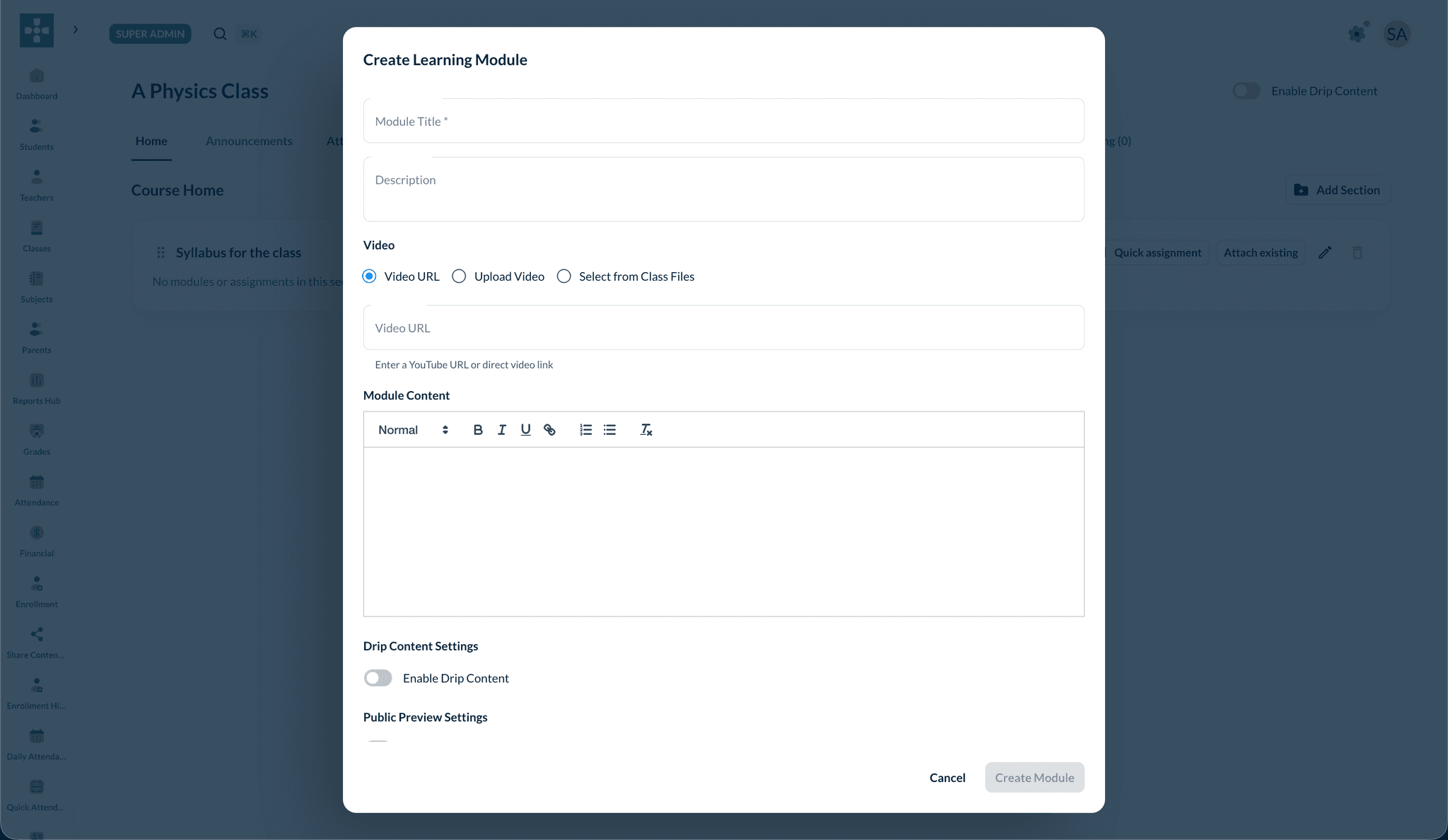
- In a section, click + Add Module
- Enter a Module Title and optional Description
- Add video content using one of three options:
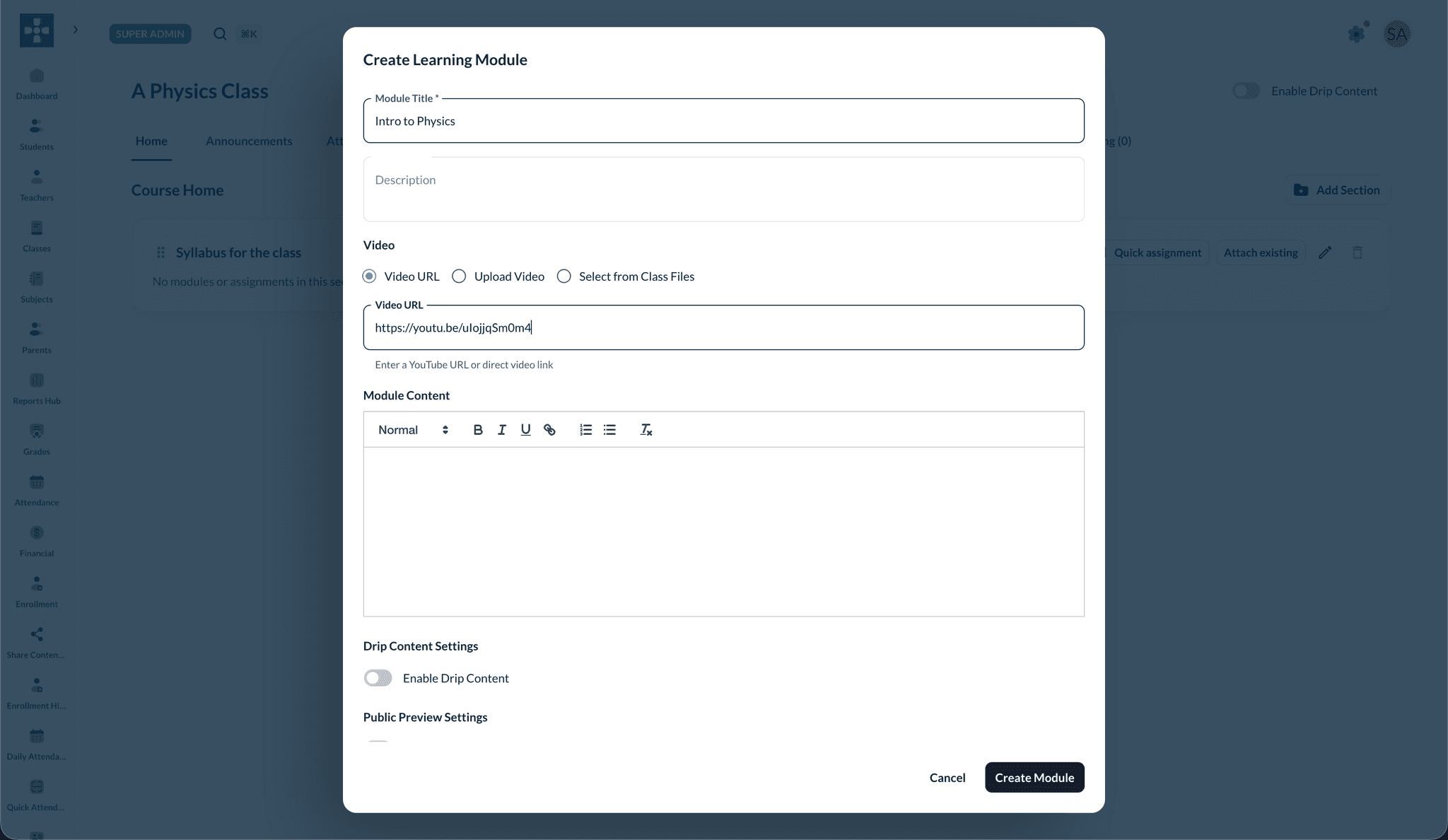
- Video URL — paste a YouTube or direct video link
- Upload Video — upload a file directly to Lumus
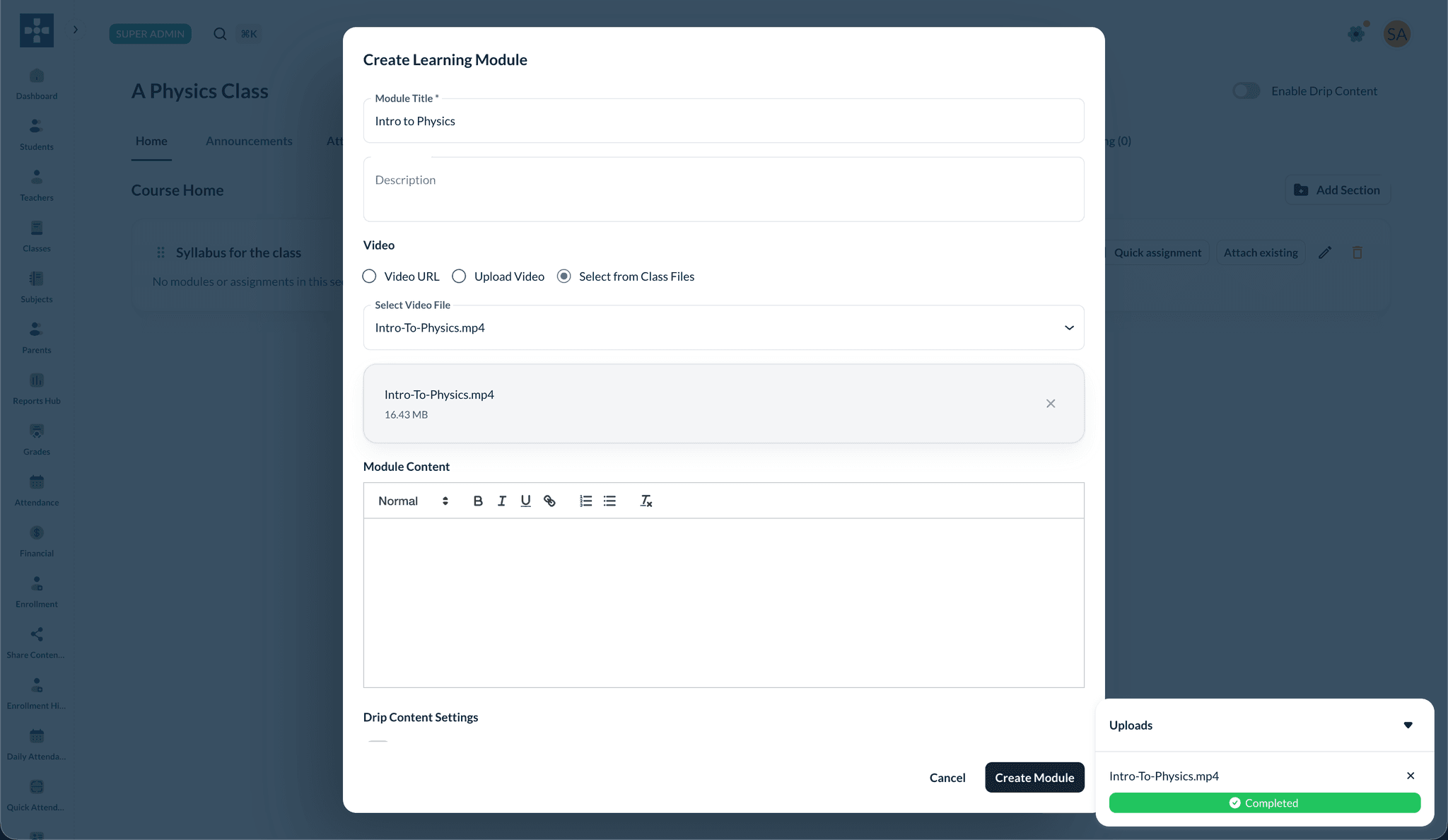
- Select from Class Files — choose a file already in the class file manager
- Use the rich-text editor for written module content
- Optionally configure Drip Content, Prerequisites, Public Preview, or Lock module for enrolled students
- Attach supporting files (PDF, documents, images — up to 10 files, 5 MB each)
- Click Create Module
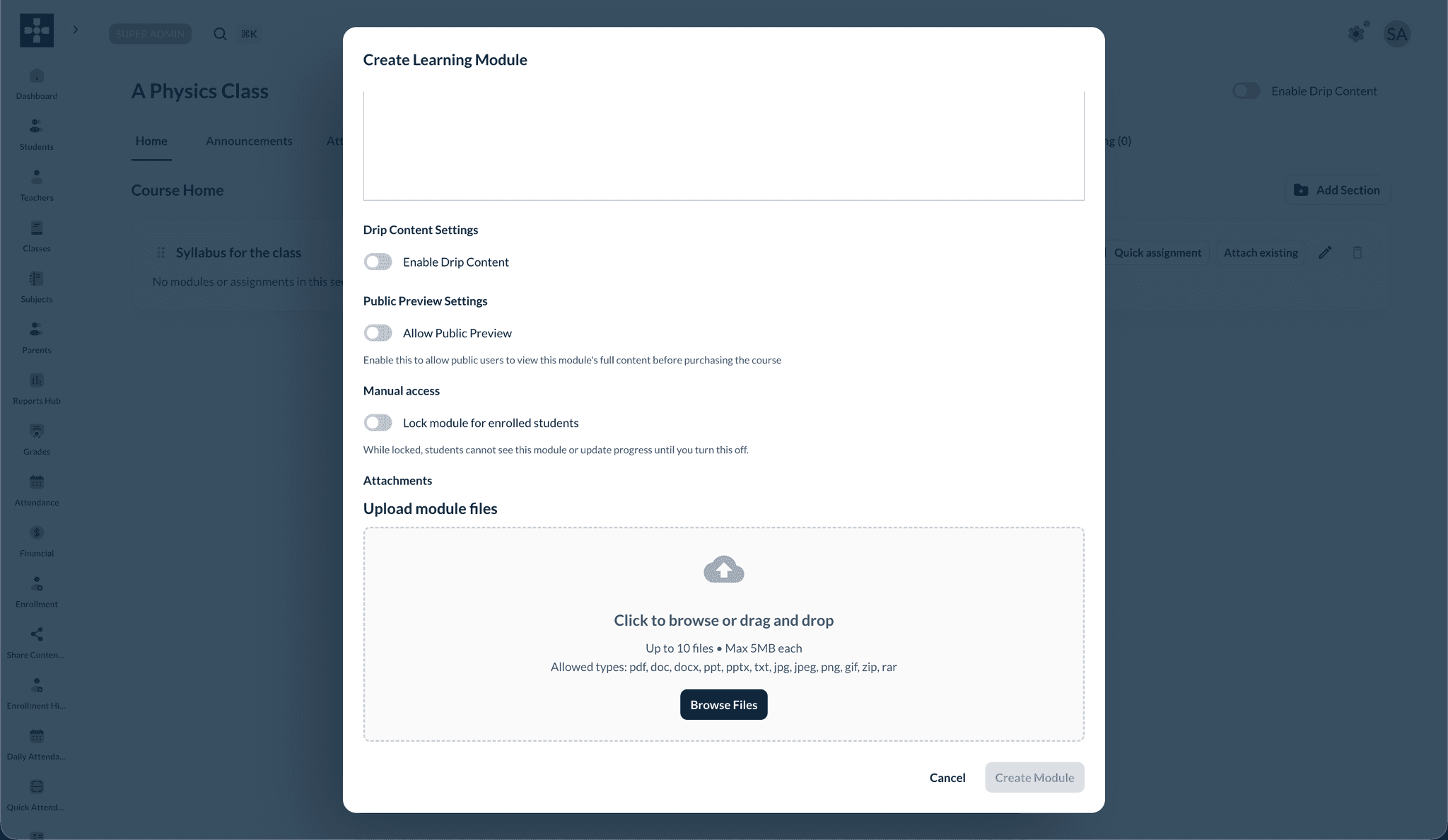
Drip content and access controls
Turn on Enable Drip Content for the module to set a release date, delay days after prerequisites, and prerequisite modules. Use Lock module for enrolled students to hide a module until you unlock it manually.
YouTube and direct video links
Paste a YouTube or direct video URL in the Video URL field. The video embeds in the module for students.
Upload video to Lumus
Choose Upload Video or Select from Class Files to attach a video stored in Lumus. Keep the browser tab open until the upload progress shows Completed, then save the module.
Large class videos (automatic chunked upload)
The portal automatically uses a chunked (multi-part) upload for class videos larger than about 200 MB. Keep the browser tab open until upload completes. If the tab is closed mid-upload, start the upload again.
Organizing content
Drag modules between sections or into Ungrouped, reorder items, and use the lock, edit, and delete icons on each row.
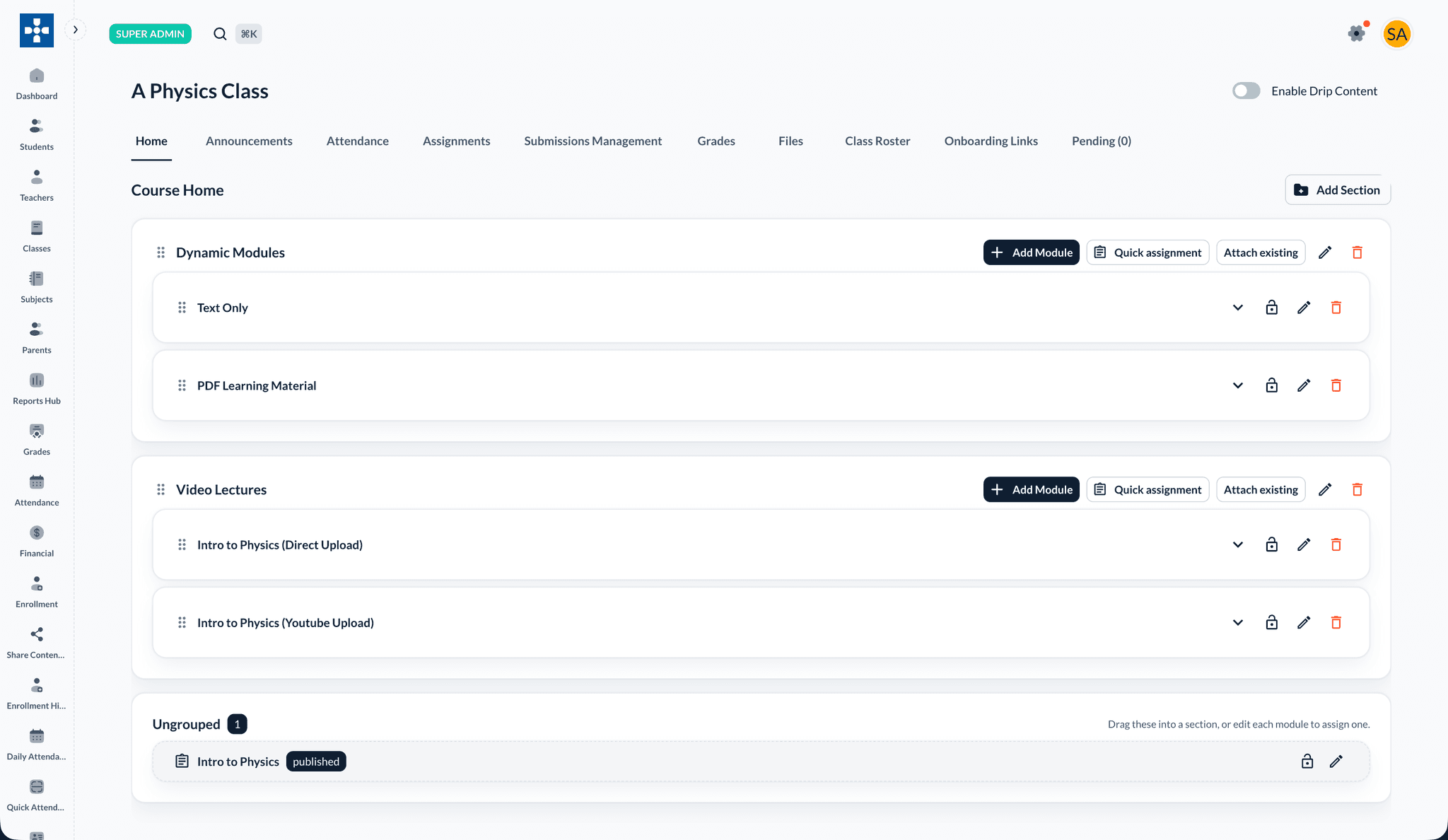
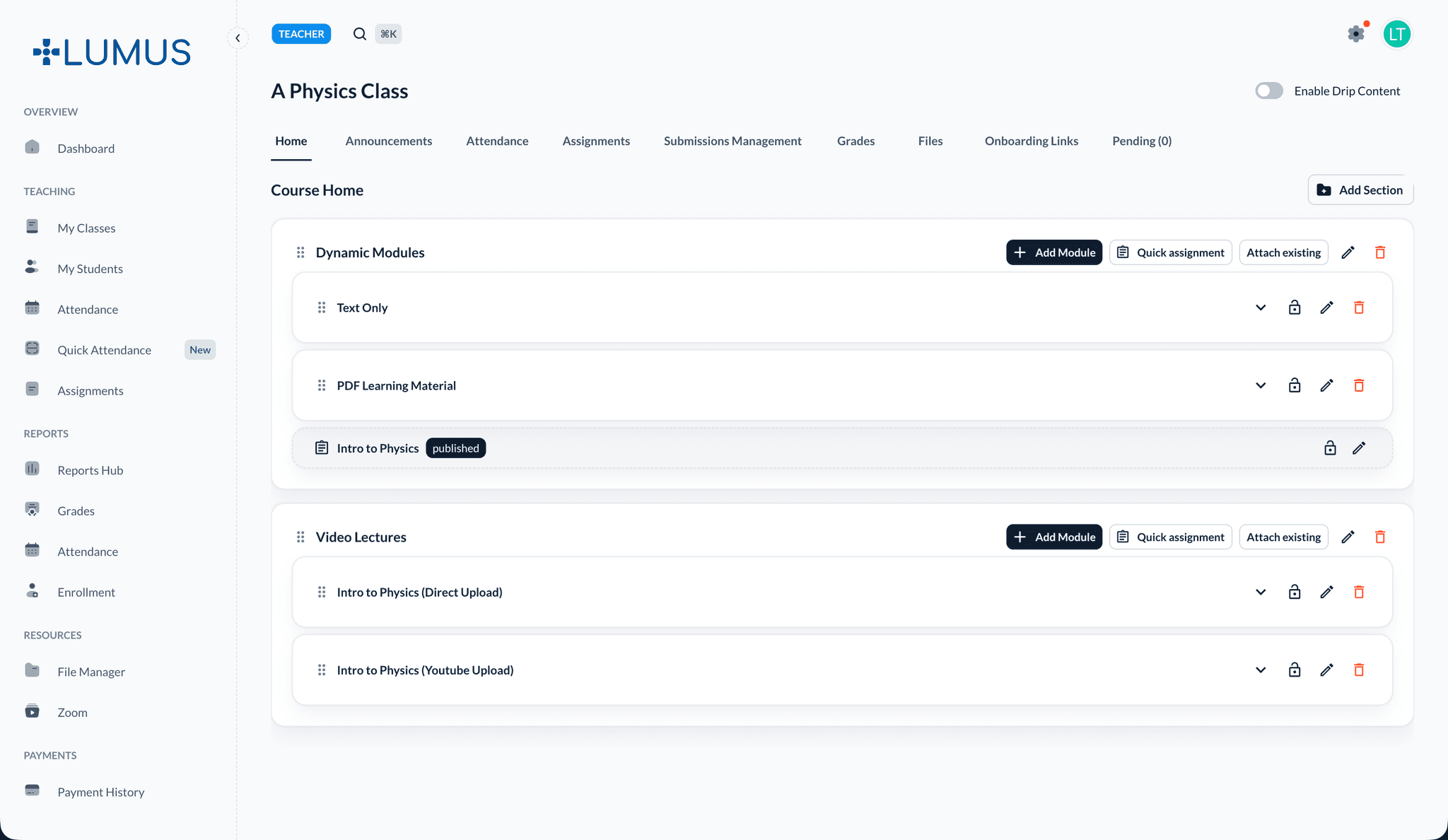
Use the Enable Drip Content toggle at the top of the class page to control class-wide drip scheduling alongside per-module settings.
Quick assignment from Course Home
Use Quick assignment on any section header to create an assignment without leaving the course content view. See Creating Assignments for the full assignment form.
Best Practices
Troubleshooting
Issue: Video not playing for students
- Solution: Check the URL format, or upload the file to Lumus instead of linking externally.
Issue: Students cannot see a module
- Solution: Check drip settings, prerequisite completion, and Lock module for enrolled students.
Issue: File attachment failed
- Solution: Each file must be under 5 MB. Supported types include pdf, doc, docx, ppt, pptx, txt, jpg, jpeg, png, gif, zip, rar.
Related Topics
- Managing Classes — Class tabs overview
- Creating Assignments — Quick assignment from a section
- File Management — Class file manager